Chapters
Accessibility
Castiel is built to be operated without a mouse and to work alongside the assistive technology you already use. The calculator responds to the physical keyboard, every interactive element takes focus and shows a clear focus ring, and mathematical notation is described aloud in a way that makes sense when spoken. This chapter gathers those features in one place and shows where their settings live.
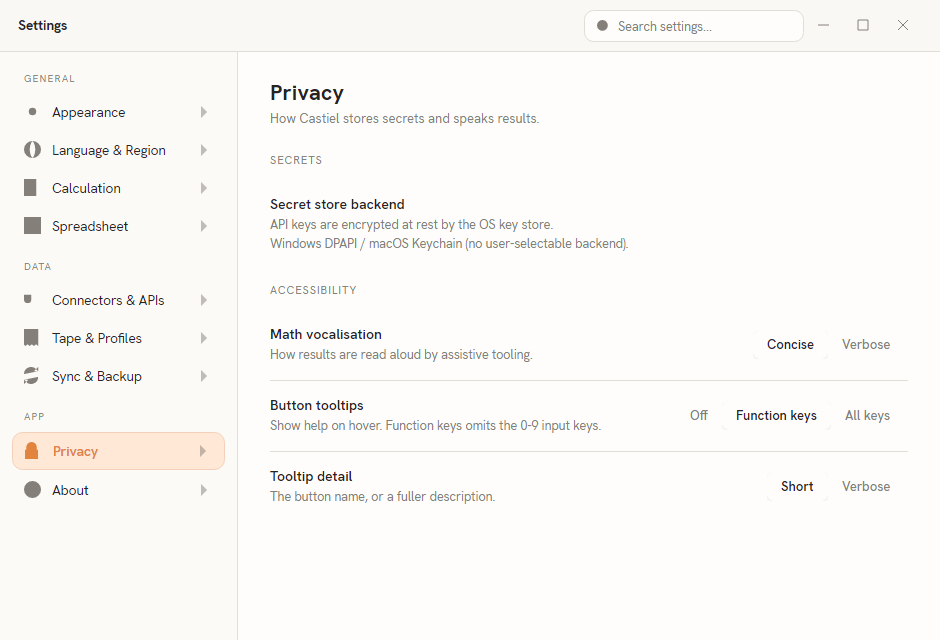
The tunable accessibility options are collected under Settings -> Privacy, in a group headed ACCESSIBILITY. Everything else described here -- keyboard operation, focus, and the reviewable paper tape -- is always on and needs no setting.
Full keyboard operation
Castiel works from the physical keyboard, so you never have to reach for the mouse. The standard entry keys drive the keypad directly:
- digits
0-9, the decimal point, and the four operators; - parentheses
(and); Enteracts as=(execute the entry);Backspacedeletes the item before the caret;Deleteclears the entry, andEscis all-clear.
Two clipboard shortcuts round out entry:
- Ctrl+C copies the value currently shown on the display.
- Ctrl+V pastes from the clipboard into the entry. By default the pasted text is read as a single number -- grouping separators, your decimal separator, and a leading sign are all handled. If you would rather paste a whole expression (for example
12 + 34) and have it evaluate when you press=, turn on Settings -> Calculation -> Input -> Paste as expression.
In Programming -> Blocks, the same clipboard keys operate on whichever block is selected: click a block to highlight it, then Ctrl+C / Ctrl+X copy or cut it and Ctrl+V pastes the copied block after the selection (or at the end of the sequence when nothing is selected). The identical actions are on the block's right-click menu.
Focus
Every interactive element -- including the math templates such as fractions, roots, and integrals -- is focusable, and the focused element shows a clear focus ring in your accent colour. That makes your position obvious as you move through a surface with the keyboard. The focus ring recolours with your chosen theme and accent, so it stays visible whether you work in the light or dark theme (see Appearance and themes).
Screen readers and spoken math
Castiel uses each desktop platform's native accessibility system, so your usual screen reader works with it:
- Windows -- UI Automation.
- macOS -- the macOS accessibility API.
- Linux -- AT-SPI2.
The part that matters most for a calculator is how mathematics is spoken. Rather than reading raw symbols, each math element reports a clear spoken description to your screen reader:
- a fraction is read as "fraction {numerator} over {denominator}";
- a square root as "square root of {radicand}" (and "{nth} root of {radicand}" for higher roots);
- superscripts and subscripts as "{base} to the {power}" and "{base} sub {index}";
- an integral as "integral from {lower} to {upper} of {body}";
- a sum or product as "{sum/product} from {index}={lower} to {upper} of {body}";
- a matrix as "matrix with {rows} rows and {columns} columns".
Vocalisation verbosity. You choose how much detail is spoken with the Math vocalisation control in Settings -> Privacy (the ACCESSIBILITY group):
| Setting | What it does |
|---|---|
Concise |
The default. Compact spoken forms, as listed above. |
Verbose |
Adds connecting words for clarity when a formula is read aloud. |
Button tooltips
Two settings in the same ACCESSIBILITY group control the on-hover help shown for keypad buttons. They make each key's purpose discoverable without memorising the layout.
Button tooltips decides which keys show a tooltip on hover:
| Setting | What it does |
|---|---|
Off |
No hover tooltips. |
Function keys |
Tooltips on the function keys only; the 0-9 input keys are omitted. |
All keys |
Tooltips on every key, including the digits. |
Tooltip detail decides how much each tooltip says:
| Setting | What it does |
|---|---|
Short |
The button's name. |
Verbose |
A fuller description of what the key does. |
Contrast, theme, and accent
Appearance is also an accessibility tool. Castiel's light and dark themes and its accent-colour choices let you set a comfortable contrast, and -- as noted above -- the keyboard focus ring follows your accent so it stays easy to pick out. If you are working with low vision, start by choosing the theme and accent that read most clearly for you. The full set of appearance controls, and how they interact, are covered in Appearance and themes.
Reading direction
Mathematical notation is always laid out left-to-right, regardless of the interface language's direction, so formulas read correctly. The surrounding interface follows the language's own direction.
The tape as a reviewable record
Because every committed calculation is written to the shared paper tape, your work is never a one-shot readout that vanishes. You can scroll back through the tape, re-read any earlier step, and correct it in place. For anyone who benefits from reviewing a result rather than catching it as it flashes past -- and for screen-reader users navigating step by step -- the tape is a durable, inspectable record of the whole session. See the paper tape for how to edit, correct, and export it.
Related chapters
- Settings -- where the Privacy pane and its ACCESSIBILITY group live.
- Appearance and themes -- themes and accent colours for comfortable contrast.
- Getting started -- a first tour of the app and its keyboard.