Chapters
The paper tape
The paper tape is Castiel's running log of everything you calculate. Every mode has one, and it is the same tape in all of them: a sum you commit in Simple, a step you work in School, a cash-flow you total in Financial all land on one shared log. Unlike a printed calculator roll, this tape is fully editable. Correct a number partway up the list and every result that depended on it recomputes on its own. That single idea - check and correct - is what the tape is built around, and it is why the tape is worth learning even if you only ever add up a shopping list.
The tape is always available and always free, whatever mode you are in and whatever tier your licence is on.
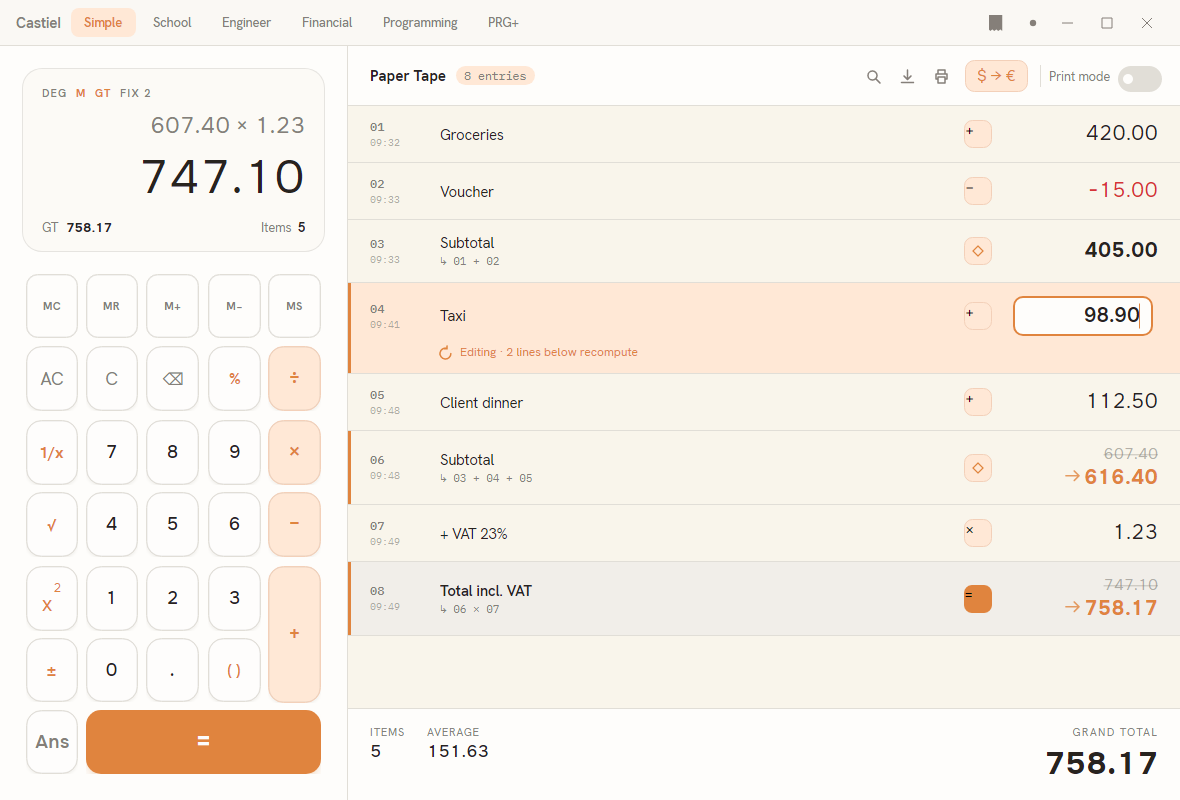
Two views onto the tape exist. Every mode keeps a docked tape down one side of its window - in the School calculator it is labelled Show working - which is a read-only running view of the log as you commit steps. When you want to work with the tape rather than just watch it, open the expanded tape: press the tape button in the title bar. The mode view is replaced by the two-part layout in the screenshot above: a compact but fully working calculator on the left, and the rich, editable tape filling the rest of the window. You can keep calculating in the left-hand calculator while the tape is open; new entries appear on the tape as you commit them. Press the same title-bar button again to close the expanded tape and return to your mode.
Reading a row
Each row on the expanded tape is laid out the same way, left to right:
- The gutter carries the entry's index (
01,02, ...) over the time it was committed. - The title is either a note you have given the row (
Groceries,Client dinner) or, if you have not named it, the expression itself. A second, smaller line beneath the title is the dependency detail: it names, with a↳marker, the earlier entries this row is built from - so row06reading↳ 03 + 04 + 05is the sum of those three rows. - The operation chip shows the operation the row performs:
+,−,×, an=for a total, or a stroked diamond (◇) for a subtotal. - The value is shown at the right. Negative values are drawn in red; subtotals are bold; the grand-total row is set in large type on a tinted band.
Hover a row and a small action strip fades in over its right edge, offering, in order, edit, comment, copy, and delete.
The footer under the list keeps three live figures for the whole tape: ITEMS (how many value rows there are), AVERAGE (their mean), and, at the right, the GRAND TOTAL. In the screenshot these read 5, 151.63, and 758.17.
Editing and correcting: check and correct
This is the heart of the tape. To fix an entry, select its row (or use the edit tool in its hover strip). The row opens an inline editor: it takes on a soft accent background with a bright bar down its left edge, and a note appears beneath the title reading, for example, Editing · 2 lines below recompute - telling you in advance how much of the tape your change will touch. Type the corrected value and press Enter to commit; press Esc to abandon the edit and leave the row unchanged.
The moment you commit, every row that depends on the one you changed recomputes automatically, working down the list in dependency order - each value is only recalculated once the values it draws from have settled. A recomputed row shows its old value struck through with an accent arrow pointing to the new one, so you can see exactly what moved. That struck-through annotation stays on screen until your next commit, then clears.
Worked example - correcting a taxi fare. The tape in the screenshot is a small expense run. It was entered as:
| # | Row | Operation | Value |
|---|---|---|---|
01 |
Groceries | + |
420.00 |
02 |
Voucher | − |
-15.00 |
03 |
Subtotal (↳ 01 + 02) |
◇ |
405.00 |
04 |
Taxi | + |
89.90 |
05 |
Client dinner | + |
112.50 |
06 |
Subtotal (↳ 03 + 04 + 05) |
◇ |
607.40 |
07 |
+ VAT 23% | × |
1.23 |
08 |
Total incl. VAT (↳ 06 × 07) |
= |
747.10 |
The taxi actually cost 98.90, not 89.90. To fix it:
- Select row
04(Taxi). The row opens for editing and the note reads Editing · 2 lines below recompute - the two rows that build on it are the second subtotal and the total. - Change
89.90to98.90and pressEnter. - The tape settles. Row
06recomputes from607.40to616.40, and row08from747.10to758.17, each showing the old figure struck through with an arrow to the new one. TheGRAND TOTALin the footer updates to758.17to match.
You corrected one wrong number in one place; the tape did the rest. Nothing between the taxi row and the total had to be re-entered.
Circular references. If an edit ever makes a row depend, through a chain, back on itself (row A needs B, which needs A), the tape detects the loop rather than spinning. It highlights every row on the circular path in red and shows the chain - for example tax → price → discount → tax - so you can see where to break it. Rows outside the loop keep computing normally.
Comments, copying, deleting, and search
Comments. Use the comment tool in a row's hover strip (or right-click the row) to attach a note, with optional comma-separated tags. Saving again replaces the note. Comments travel with the tape when you save the session.
Copy and reuse. Drag a row to reuse its expression elsewhere, or press Ctrl+C (or the copy tool in the hover strip) to copy it. A copied row carries two forms at once: pasted back into Castiel it returns as the original expression; pasted into any other application it arrives as plain readable text.
Delete. The delete tool removes a row for real: the entry is dropped, the rows below it renumber, and anything that depended on the deleted row recomputes without it. There is no confirmation prompt, so use undo if you delete by mistake.
Search. The search tool in the toolbar opens a filter box; type to show only the rows that match. A counter tells you how many entries matched. Clear the box to return to the whole tape.
Currency on the tape
A tape can carry a currency. When a base currency is set, a currency chip appears in the toolbar showing the conversion pair (for example £ → €). Selecting the chip opens the currency popover, where you control everything about money on this tape:
- Base currency - pick the currency the tape's own values are counted in.
- Show symbol on tape - a toggle that prints the currency symbol beside each value.
- Convert total to - a list of target currencies. Each row shows the currency's symbol and name, the exchange rate in use, and the tape's grand total converted into it. Use Add currency to add a target, or the remove control on a row to drop one.
- A footer with Save as profile… (see below) and Reset.
Exchange rates come from Castiel's active rate provider; when a live rate cannot be refreshed, the tape falls back to the last cached rate and marks it as stale so you know the figure may be behind. Rate providers and how they are chosen are covered in Connectors.
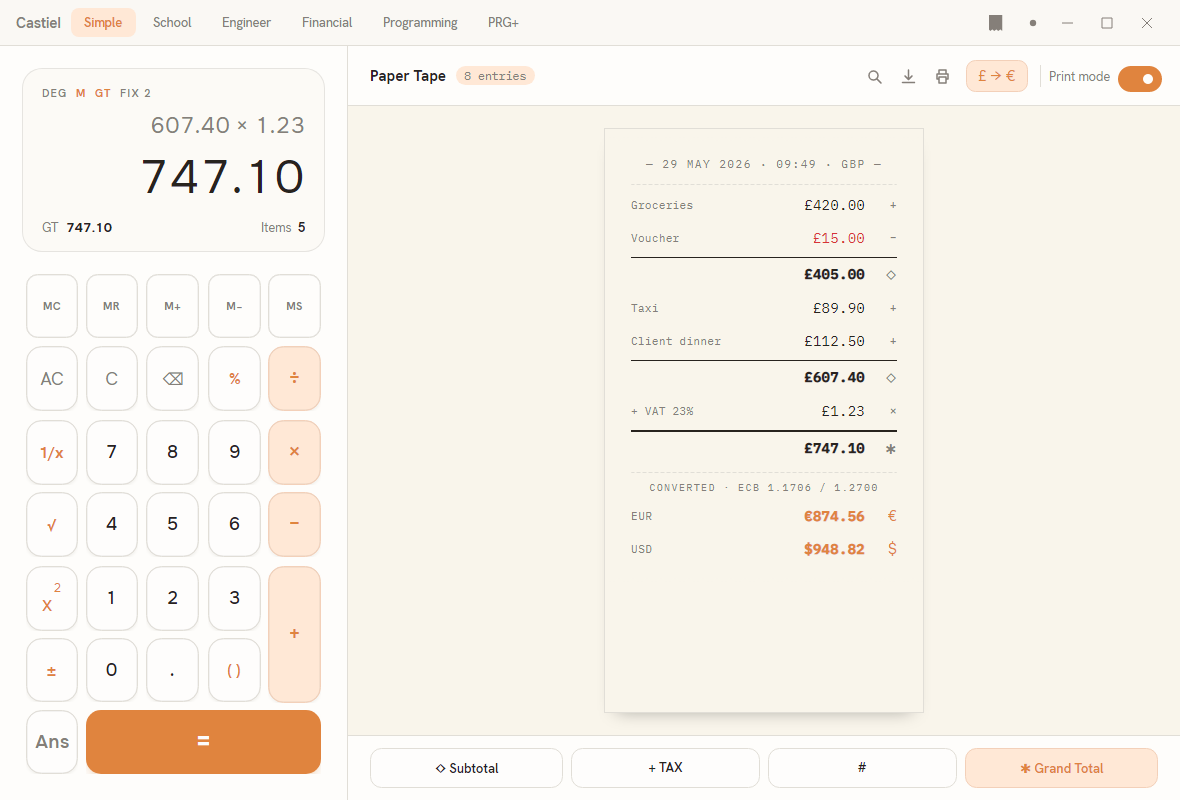
The converted totals are visible on the tape itself when you switch on Print mode (the toggle at the right of the toolbar), which redraws the list as a thermal receipt roll. Below the printed grand total, a CONVERTED block lists each target currency with its rate and converted amount:
Tape profiles
A tape profile is a saved, named currency setup - a base currency, its decimal precision, whether the symbol is shown, and the list of conversion targets with their rate source (automatic, or a manual rate you set). Profiles save you rebuilding the same conversion every time: a GBP → EUR setup for one shop, a USD → EUR, GBP setup for invoices, and so on.
The profile chip at the top of the currency popover opens the profile menu, listing your saved profiles and offering New profile and Manage profiles. Choosing Manage profiles opens a full-window surface for organising them:
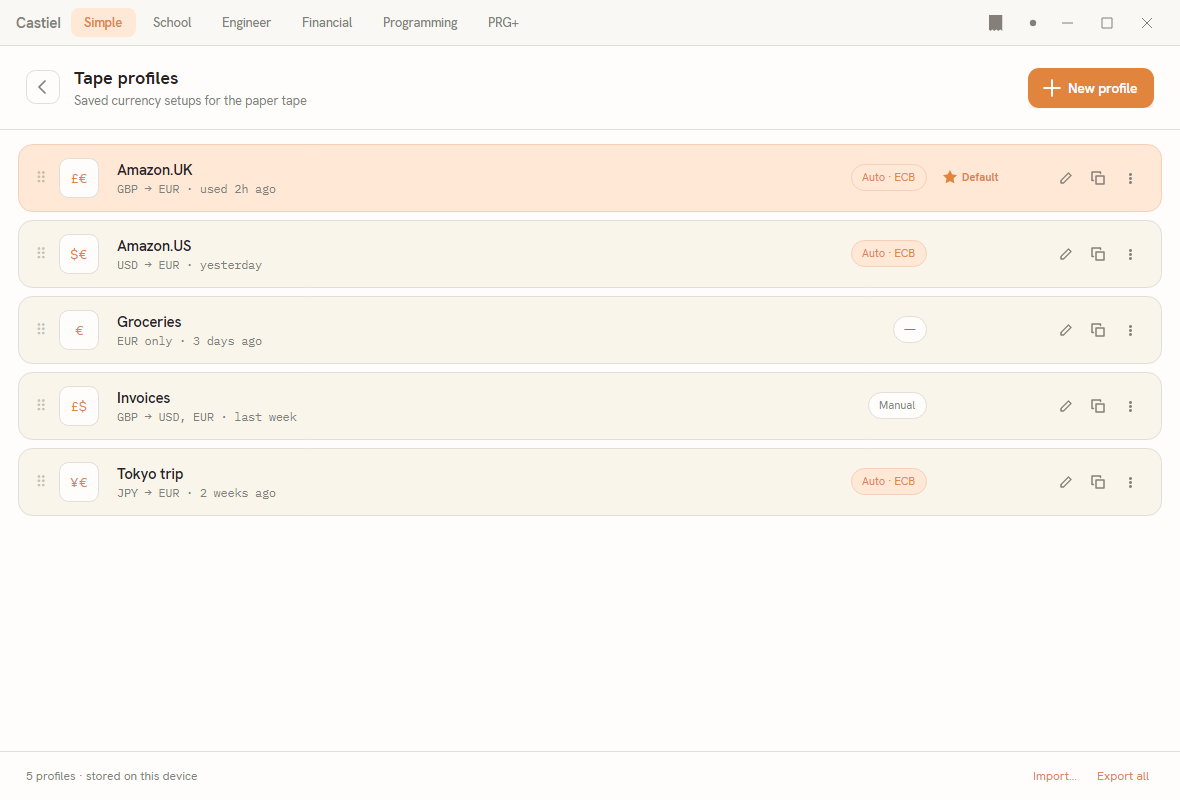
Each row here shows a drag grip, the currency pair badge, the profile's name and a one-line summary, its rate chip (Auto · ECB, Manual, or single-currency), and how recently it was used. One profile can be marked Default with the star badge. Per-row tools let you edit or duplicate a profile; drag the grip to reorder the list. The footer shows how many profiles you have and where they live, alongside Import… and Export all, which move your whole profile set in or out as a single file - handy for carrying your setups to another machine.
Saving, exporting, and printing
The session file. A tape session is saved as a .cast file. It is written as you work rather than only when you close, it carries a checksum sidecar so its integrity can be verified, and it records a clean-close marker - so if Castiel is ever interrupted, an unfinished session can still be recovered the next time you open it. Saved tape profiles are stored beside the session. The .cast format is described in File types.
Exporting. The export tool in the toolbar offers two forms of the tape:
- Copy as text puts a plain-text version of the tape on the clipboard.
- Save as text… writes that same plain-text version to a file.
Printing a receipt. The print tool sends the tape to a configured receipt printer as a thermal receipt. Setting up that printer is covered in Connectors. (There is no PDF or image export of the tape.)
Clearing. To start a fresh tape, clear the current session; the log empties and the footer resets. Anything you want to keep should be saved or exported first.
Related chapters
- Getting started - the modes, the title bar, and where the tape button lives.
- The School calculator - how committed steps reach the tape as Show working.
- Connectors - currency rate providers and the receipt printer.
- File types - the
.casttape session file and how it is recovered. - Settings - number format and the options that shape how values are shown.