Chapters
The AI assistant
The AI assistant is a chat panel that turns a plain-language request into a Catena sequence. You describe the calculation you want in ordinary words, and the assistant drafts a sequence you can review, then insert into your program and run. It is docked to the right side of the workspace, and it is exclusive to Programming+: no other mode shows it. For everything the panel produces, you stay in control -- nothing the assistant writes enters or runs your program until you say so.
Reach the assistant by switching to Programming+ mode; the panel opens on the right, beside the block and listing editors. If you are new to authoring sequences, read the Programming overview and Blocks first -- the assistant produces the same blocks you would build by hand, so it helps to know what they are.
Castiel ships with no built-in AI. The panel talks to an LLM provider that you supply and configure -- so before it can do anything, you need a provider set up. That is a one-time step, covered next.
Setting up a provider
The assistant uses whichever LLM provider you have configured and marked active in Settings -> Connectors. Castiel supports Anthropic, OpenAI, Qwen, and DeepSeek. For each, you enter your own API key (stored in your operating system's secure key store, never in a plaintext file), health-check it, and set one provider as the active one. The active provider is the one the assistant sends your requests to.
Until you have done this, the panel cannot send anything. With no provider configured it shows a short note in the thread --
No LLM provider is configured. Open Settings, then Connectors, to add one.
-- and the input box and send button are disabled. Once you have entered a key and marked a provider active, the panel comes to life and the note disappears.
The full walkthrough for adding a key, validating it, and choosing the active provider is in Connectors. This chapter assumes you have a provider active.
The panel at a glance
The panel is a single column with three parts, top to bottom.
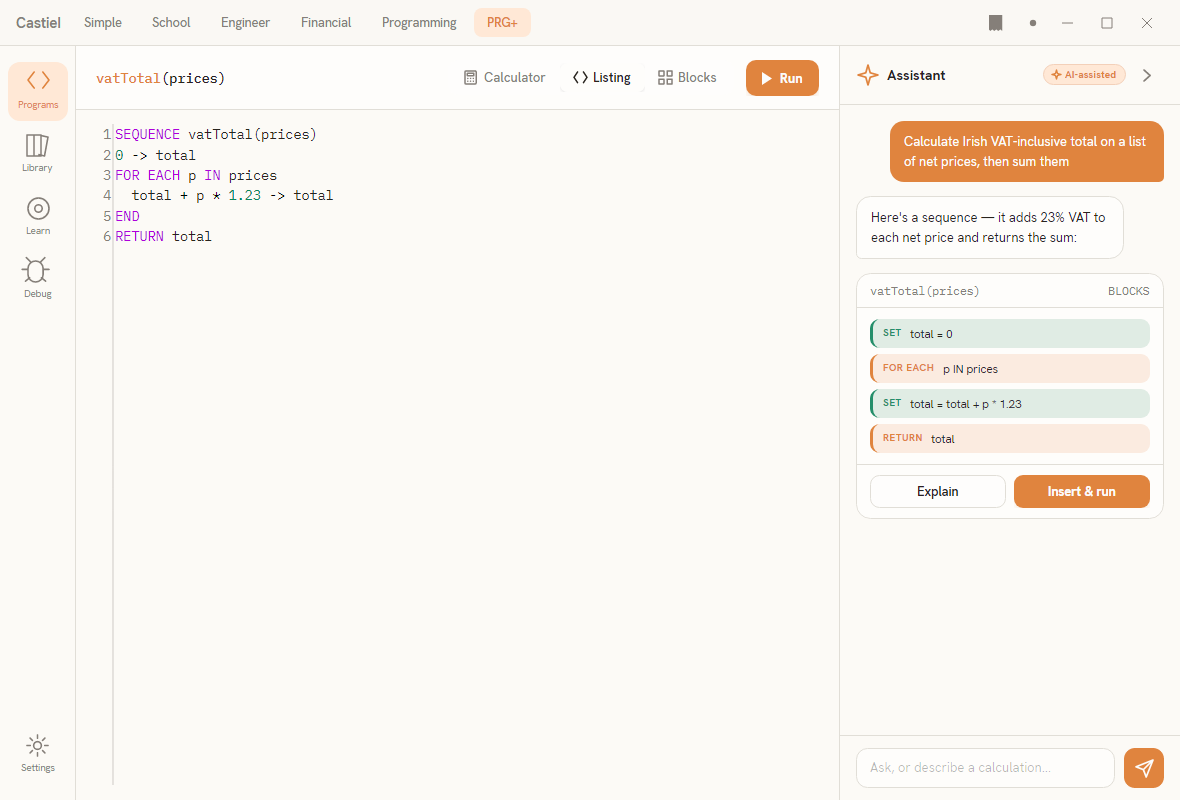
The header carries an accent sparkle glyph, the label Assistant, an AI-assisted chip, and a collapse chevron. The chevron folds the whole panel down to a thin reopen strip along the right edge -- useful when you want the full width for the block and listing editors -- and folds it back out again. While the panel is expanded, the listing's console pane steps aside to make room; it returns when you collapse the panel. The debugger stays put when you are on the Debug surface, so opening the assistant never disturbs a debugging session.
The chat thread fills the middle. Your messages appear as accent-filled bubbles on the right; the assistant's replies appear as surface-card bubbles on the left. The thread is the running conversation -- your requests, the assistant's answers, and any status messages, all in order.
The input bar sits at the bottom: a text box (prompt: Ask, or describe a calculation...) and an accent send button. While a reply is streaming in, the send button becomes a Stop button.
Asking for a sequence
Type what you want in plain language and press send. The request goes to your active provider, and the reply streams back into the thread a few words at a time, so you can read it as it forms. If a reply is heading somewhere you did not intend, press Stop to cancel it mid-stream; whatever arrived so far stays in the thread for you to read.
You do not need to write any Catena yourself. Describe the task the way you would explain it to a person -- "add up a list of prices and apply 23% VAT", "count how many numbers in a list are above their average", "convert a temperature from Celsius to Fahrenheit". The assistant's job is to turn that into a valid sequence.
Two kinds of reply. When the assistant returns something that reads as a complete, valid sequence, Castiel checks it and -- if it holds together -- turns it into a generation result card (below). When the assistant returns ordinary prose instead (an explanation, a clarifying question, an apology), it simply stays as a chat bubble. So a plain-text answer and a runnable sequence look different in the thread, and you always know which one you have.
The generation result card
When a reply validates as a sequence, a result card appears in the thread. It is a compact, read-only preview of what the assistant produced -- not the live editor. The card has:
- a header showing the sequence name (for example
vatTotal(prices), or justsequencewhen the draft has no name of its own) and a small BLOCKS label; - a stack of mini block faces -- the same colour-coded blocks you would see in the block editor (a soft category fill, a coloured bar, an uppercase tag), shown flat and read-only so you can scan the shape of the sequence at a glance;
- two actions along the bottom: Explain and Insert & run.
Explain asks the assistant to walk through the previewed sequence step by step. It is a genuine follow-up request to the same provider, and its answer arrives as a new bubble in the thread. The result card stays put while you read the explanation -- asking for an explanation never discards the draft you are considering.
Insert & run is the sanctioned path from preview to program. It drops the generated sequence into your listing, re-checks it, and runs it through the normal execution path -- the same run you would get by pressing run yourself, highlighting lines and writing any output to the shared paper tape.
Review before it runs: the safety model
Nothing the assistant writes touches your program on its own. An LLM reply is just text until you act on it, and Castiel treats it that way:
- The reply is checked before it is ever offered as a sequence. Only a draft that passes Castiel's own validation becomes a result card; anything that does not stays inert prose.
- The card is a preview, not the editor. The mini blocks show you exactly what would land in your program, but they are read-only. Seeing the preview does not insert or run anything.
- Insertion is an explicit action. The sequence enters your listing only when you press Insert & run -- and it is validated once more, by the same rules, on the way in. A drafted sequence is held to precisely the same standard as one you typed yourself; being AI-written earns it no shortcut.
In short: you read the draft, you decide, and only then does it run.
A privacy note. Because the assistant uses your provider, your request is sent to the provider you chose -- Anthropic, OpenAI, Qwen, or DeepSeek. Treat what you type as you would any message to that service. Your API key stays in your operating system's secure store and is used only to authenticate your requests; it is not shared with Castiel's authors or anyone else.
A worked example
Suppose you want a sequence that totals a list of prices and adds VAT.
- Switch to Programming+. The assistant panel opens on the right. (If it shows the "No LLM provider is configured" note, open Connectors and set an active provider first.)
- In the input box, type: Make a sequence that takes a list of prices, sums them, and adds 23% VAT to the total. Press send.
- The reply streams into the thread. When it settles into a valid sequence, a result card appears -- the header reads something like
vatTotal(prices), withBLOCKSbeside it, and the mini blocks below show the sum and the VAT step. - Read the blocks. If you want the reasoning spelled out, press Explain; the assistant posts a step-by-step walk-through as a new bubble, and the card stays where it is.
- When you are satisfied, press Insert & run. The sequence lands in your listing, is checked, and runs -- the result is written to the paper tape, and you can now edit, extend, or debug the sequence exactly as if you had authored it by hand.
If the first draft is not quite what you meant, just ask again -- "make the VAT rate a parameter", "return the total rounded to two decimals" -- and a fresh card replaces the old one. You can iterate in plain language until the sequence is right, then insert it once.
Related chapters
- Programming overview -- Programming and Programming+ modes, and how the workspace is laid out.
- Connectors -- adding your LLM provider's API key and setting the active provider.
- Blocks -- the block families the result card previews.
- The Catena language -- the sequence language the assistant writes for you.