Chapters
Settings
Settings is where you set how Castiel looks and behaves. It opens as a dedicated window, separate from the calculator, so you can browse the options without losing your place in whatever mode you were using. Nearly everything on every mode is a default you choose here once and then forget: the theme and accent colour, the language and number formatting, which mode the app opens in, how the display rounds and formats results, and where your currency rates and API keys come from.
You reach Settings two ways: from the Settings tile on the apps rail down the left edge of the main window, or from the small search-and-settings control in the title bar. Either opens the same window.
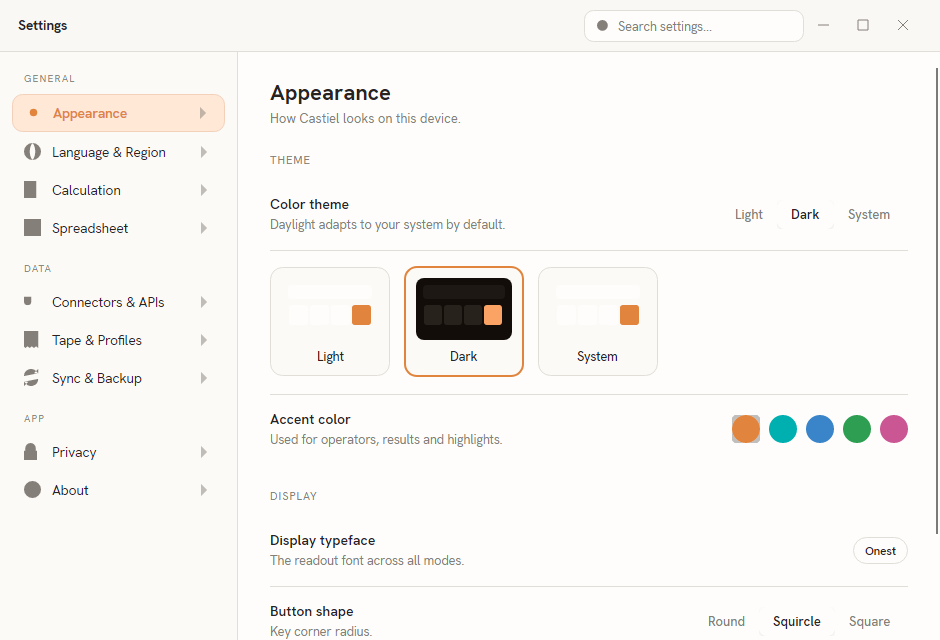
The window has its own slim title bar with a Search settings box, a navigation list down the left side, and the selected pane filling the rest. The navigation groups the panes under three headings:
- GENERAL - Appearance, Language & Region, Calculation, Spreadsheet
- DATA - Connectors & APIs, Tape & Profiles, Sync & Backup
- APP - Privacy, About
Click any item to switch panes; the current one is highlighted. The sections below walk through each pane in that order.
Most settings apply and save the moment you change them - toggles, segmented buttons and swatches take effect live, and closing the window keeps them. The one exception is the Calculation pane's Defaults group, which has an explicit Apply defaults button (described there). Throughout, a note calls out whether a setting is an app-wide default (it holds for every session until you change it again) or something you can still override per session from inside a mode.
Appearance
The Appearance pane controls how Castiel looks on this device. Its two groups are THEME and DISPLAY.
Colour theme. A segmented control offers Light, Dark, and System (which follows your operating system's light/dark setting). Below it sit three live preview cards - miniature mock screens that render in true light, true dark, and the current system variant - so you can see each option before committing. Selecting a theme, whether from the segmented control or by clicking a card, changes the whole app immediately.
Accent colour. A row of five colour swatches sets the accent used for operator keys, results, and highlights across every mode. The selected swatch carries a ring. Hover a swatch to see its name.
Display typeface. This row shows Onest, the readout font used across all modes. It is informational - the typeface is fixed and not user-selectable.
Button shape. A segmented control with Round, Squircle, and Square sets the corner radius of the calculator keys. The change is live, so the keypad in the main window updates as you switch.
Key press feedback. A toggle for the subtle sound and haptic cue on each keystroke, where the device supports it.
Everything on this pane is an app-wide preference for this device; there is no per-session override.
Language & Region
This pane sets the interface language and how numbers are formatted. Its groups are APP LANGUAGE and NUMBER FORMAT.
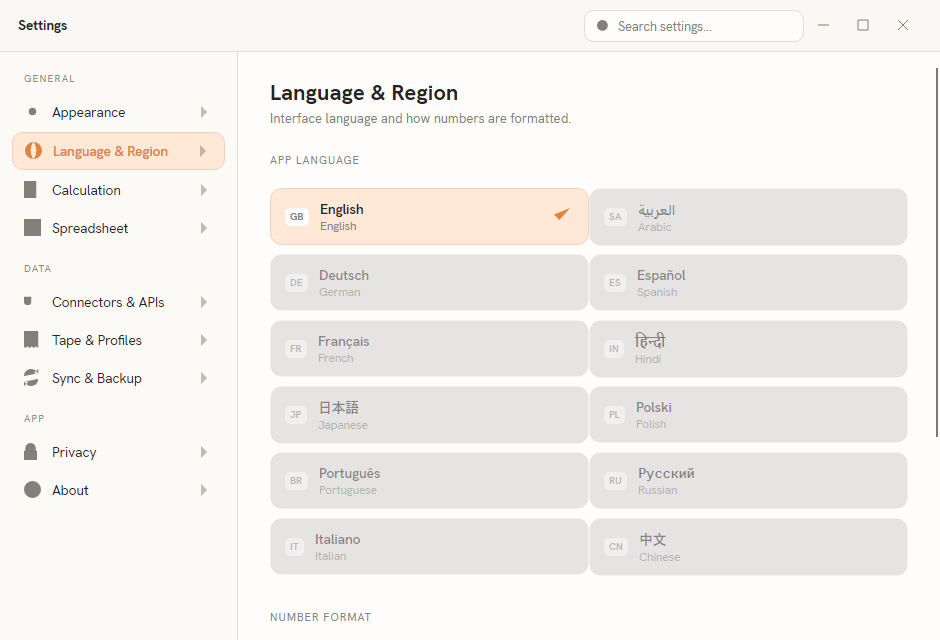
App language. A two-column grid of language cards, each showing a flag and the language's native and English names. English is selected and available. The other languages are listed but disabled in this version; each will switch on when its translation ships. Selecting an available language marks it with a check.
Number format. Three segmented controls and a live preview:
| Setting | Choices | What it controls |
|---|---|---|
| Decimal separator | Point (1.5) / Comma (1,5) |
The character between the whole and fractional parts of a number. |
| Digit grouping | 1,234 / 1.234 / 1 234 / None |
How long numbers are grouped for readability. |
| Default angle unit | Degrees / Radians / Grads | The angle mode a fresh session starts in. |
A Preview row at the bottom reformats a sample number as you change the separator and grouping, so you can confirm the combination reads the way you expect.
The number-format choices are app-wide defaults. The angle unit set here is the starting default; inside a mode you can still switch angle mode for the current session, and the mode's annunciator row shows which is active (see The School calculator).
Calculation
The Calculation pane holds the defaults a fresh calculator session starts with, plus two input preferences and the list of modes to show. Its groups are DEFAULTS, INPUT, and MODES SHOWN.
Defaults.
| Setting | Choices | What it does |
|---|---|---|
| Default mode | Any of the six modes | Which mode the app opens in on a fresh session. |
| Rounding mode | A rounding-mode list | How intermediate results are rounded. A live example shows the effect. |
| Display mode | Fixed (FIX) / scientific / engineering / normal | How decimal results are presented. A live example shows the effect. |
These three are the session-start defaults. Because they are the values a new session begins with - not a live change to the mode you have open - this group has an explicit Apply defaults button; click it to commit your selections. Inside a mode you can still change the display and angle behaviour for the current session; those live changes show up in that mode's annunciator row and do not alter the defaults saved here.
Input. Two toggles that persist immediately:
- Paste as expression - when on,
Ctrl+Vpastes the clipboard as a whole expression to evaluate on the next=, rather than recalling a single number into the entry. - User-friendly arithmetics in Simple mode - rounds Simple-mode results to what the display can show, hiding the tiny rounding-noise tails that can otherwise appear.
Modes shown. A toggle for each of the six modes controls which mode pills appear in the main window's title-bar tab strip. At least one mode must stay on - Castiel refuses to hide the last one. This is the same choice you make during first-run onboarding, editable here at any time; changes persist as you toggle them.
Spreadsheet
This pane governs how the School spreadsheet auto-saves and protects your workbook files. Its groups are AUTO-SAVE and FILE PROTECTION.
Auto-save.
- Auto-save spreadsheets - a toggle that continuously saves the working spreadsheet in the background so a crash never loses it.
- Auto-save interval - how often, in seconds, the working spreadsheet is written.
- Keep recovery files for - how many days auto-save recovery files are kept before being cleaned up.
- Keep auto-saving after Save As - what happens to the background auto-save once you save a spreadsheet to a named file.
File protection.
- Protect against external changes - refuses to silently overwrite a saved file that was changed on disk since you opened it.
- Encrypt saved files at rest (Windows) - uses Windows file-system encryption on saved workbook files. It has no effect on macOS, Linux, or non-NTFS drives.
These are app-wide preferences; the auto-save loop picks them up the next time the spreadsheet runs.
Connectors & APIs
This pane is where you set up the external data Castiel can pull in: live currency rates, your own web APIs that return a number, the large-language-model providers used by the advanced modes, and receipt-printer output. Because it is the most involved surface in Settings, it has its own chapter.
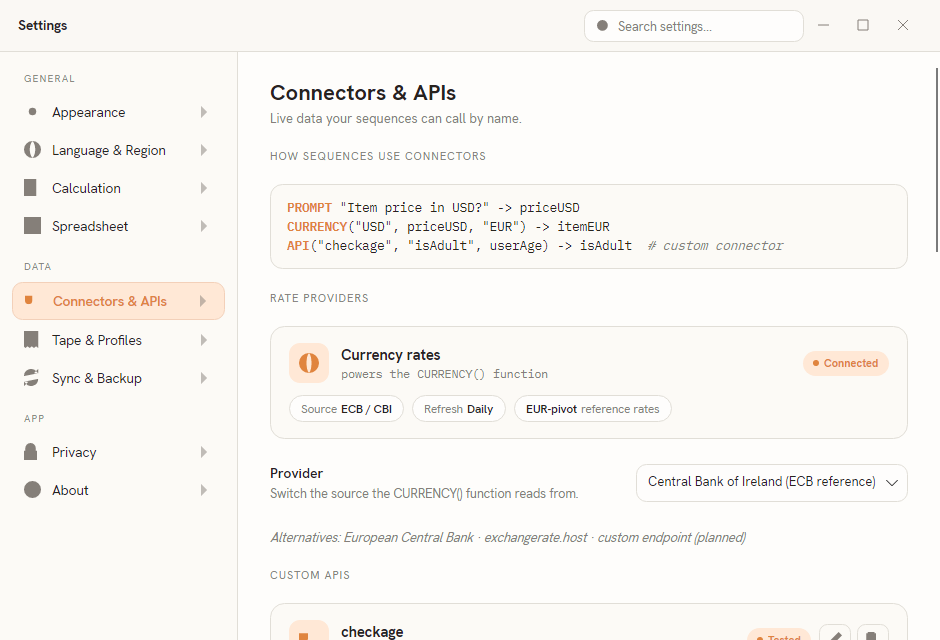
In brief, the pane lets you check the status of the currency rate providers, add and test your own custom API endpoints, store and manage provider keys (shown masked), export and import those keys as an encrypted file, and configure offline rate caching and the printer transport. Keys are held in your operating system's secure store, not in a plain file.
For the full walkthrough - adding a custom API, the Test button, managing provider keys, and the encrypted key file - see Connectors.
Tape & Profiles
This pane covers the shared paper tape's currency setups and its offline behaviour, under a single CURRENCY PROFILES group.
- Default profile - a summary of the currently active tape profile (its name and base currency), or a note that none is saved yet.
- Use cached rates when offline - a toggle. When on, Castiel serves the last fetched rate (marked stale) if the live feed cannot be reached.
- Manage tape profiles - profiles themselves (base currency, conversion targets, and which is the default) are created and edited from the paper tape's own currency control, not here. Open the tape, click the currency chip, then choose Manage profiles.
For how the tape uses profiles and rates, see The paper tape.
Sync & Backup
Cross-device sync and cloud backup are not part of this version. The pane is a placeholder that says so: your settings, custom APIs, and tape profiles are stored locally on this device. When a sync backend ships, its controls will appear here.
Privacy
The Privacy pane covers how Castiel stores secrets and how it speaks results aloud. Its groups are SECRETS and ACCESSIBILITY. There is no separate Accessibility pane - the assistive-technology options live here.
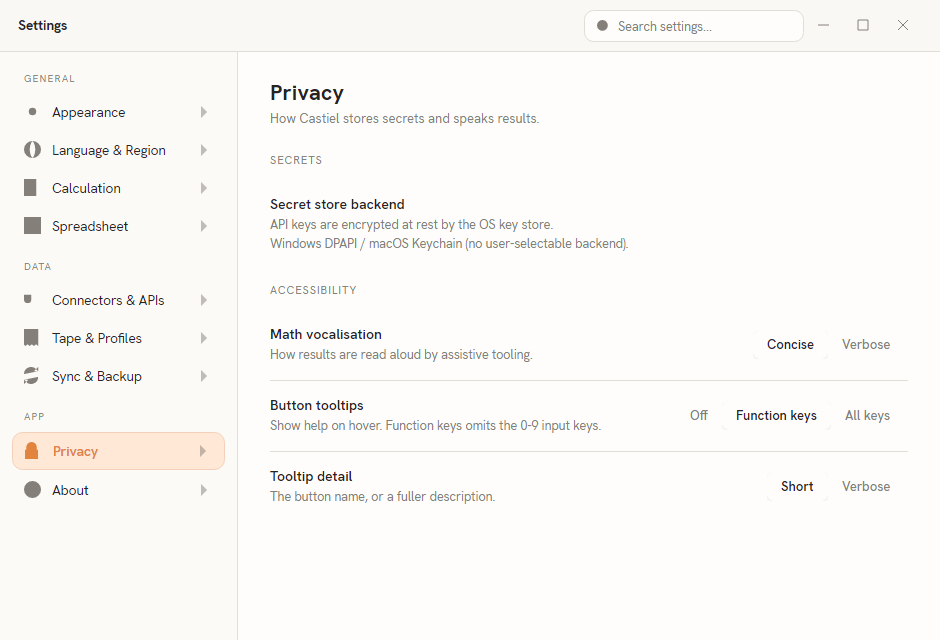
Secrets. API keys are always encrypted at rest by the operating system's key store. On Windows this is DPAPI and on macOS the Keychain, with no user-selectable backend - the pane simply states which is in use. On Linux, where more than one secret store can exist, a Switch backend button lets you choose between them, and a status line reports the result of a switch.
Accessibility. Three settings shape how the app reads out and labels things:
| Setting | Choices | What it controls |
|---|---|---|
| Math vocalisation | Concise / Verbose | How mathematical notation is read aloud by assistive tooling - a short reading or a fuller one. |
| Button tooltips | Off / Function keys / All keys | Which keypad buttons show a help tooltip on hover. Function keys omits the 0–9 digit keys. |
| Tooltip detail | Short / Verbose | Whether a tooltip shows just the button's name or a fuller description. |
For a complete guide to using Castiel with a screen reader and keyboard, see Accessibility.
About
The About pane shows version, credit, and update information, under a CASTIEL group.
- Version - the application version string, with a note that Castiel is in an alpha state and that feedback and bug reports are welcome.
- About Author - copyright and author details.
- License - a short summary: Castiel is a multi-platform calculator for desktop and mobile; the bundled open-source fonts (Onest, Hanken Grotesk, IBM Plex Mono) ship under the SIL Open Font License; and there is no telemetry and no advertising. The app's website carries the full licensing and privacy details.
On the directly distributed Windows build, an UPDATES group adds a Check for updates on startup toggle; when on, Castiel looks for a new version at launch, at most once every twelve hours. This group does not appear on the store build or on macOS and Linux, where updates are handled by the platform.
For what the paid app unlocks and how the free tier's timed advanced modes work, see Free tier and licensing.
Related chapters
- Connectors - the full reference for currency rates, custom APIs, provider keys, and the printer.
- Appearance and themes - theming, accent colours, and key shapes in depth.
- Accessibility - using Castiel with a screen reader and keyboard.
- The paper tape - currency profiles and offline rates in use.
- Free tier and licensing - what the paid app unlocks and the free-tier timer.