Chapters
The School calculator
The School calculator is Castiel's everyday scientific workspace. You reach it from the Calculate tile on the left apps rail, and it is where most School-mode work begins. It is built around Natural Textbook entry: you write mathematics the way it looks on paper. Fractions stack, roots sit under their radical sign, powers ride as superscripts, and integrals carry their limits. What you type and what you would write in an exercise book are the same thing.
Use the School calculator whenever you want a single expression evaluated and shown in exact form where one exists. It is the right surface for arithmetic, trigonometry, logarithms, powers and roots, factorials, and the calculus templates (∫, d/dx, Σ). For plotting, statistics, equations, or spreadsheets, switch to the matching tile on the rail; those are separate chapters. See the School apps for the full set.
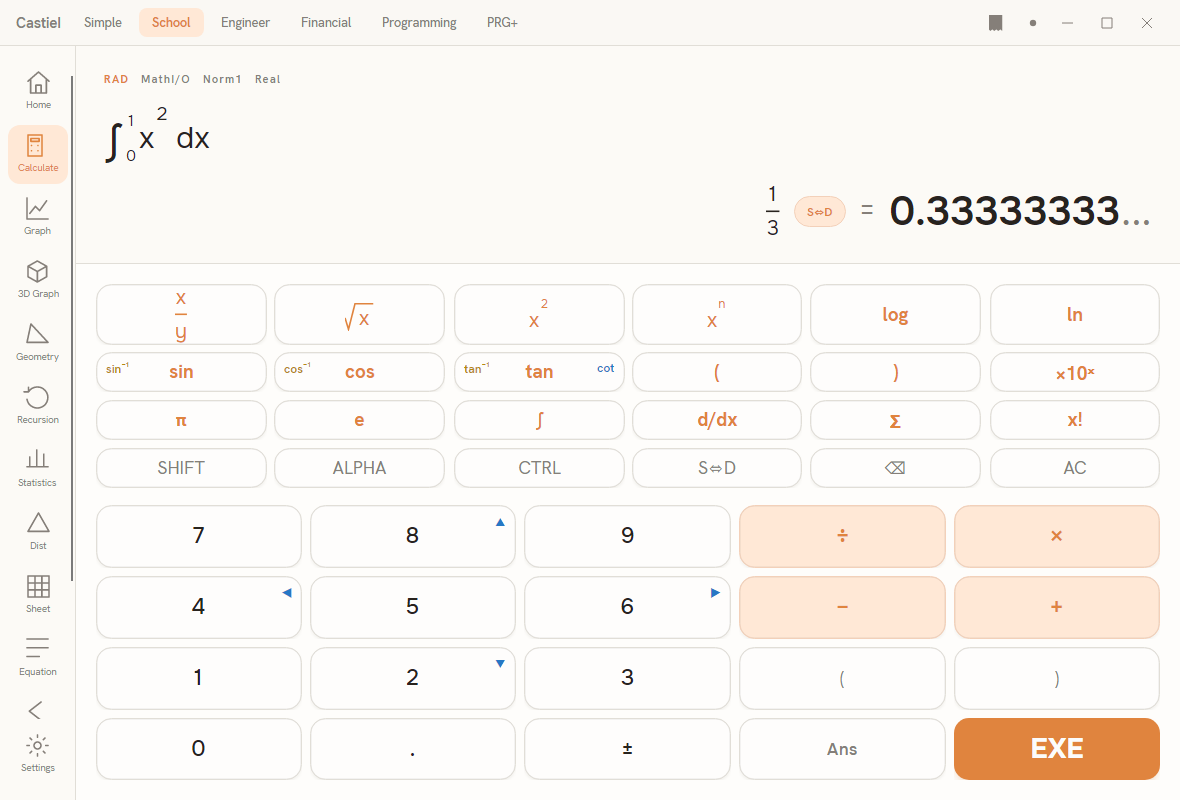
The window has three parts: the apps rail down the left edge (Home, Calculate, Graph, 3D Graph, Geometry, Recursion, Statistics, Dist, Sheet, Equation, Settings, and a chevron that collapses the rail to icons); the calculator column in the centre, where a Natural Textbook display sits above the keypad; and the Show working panel on the right, which mirrors your committed steps into the shared paper tape.
Reading the display
The top of the calculator column is a status strip of four annunciators, then the entry area, then the result.
The annunciator row. Reading the strip in the screenshot left to right: RAD MathI/O Norm1 Real.
| Annunciator | Meaning | Other values you may see |
|---|---|---|
RAD |
The current angle mode: angles are measured in radians. | DEG (degrees), GRA (gradians) |
MathI/O |
Natural Textbook entry is active: you build and read stacked notation. | LineI/O (single-line, linear entry) |
Norm1 |
The number format for decimal results: natural notation, switching to scientific only for very large or very small values. | Fix (fixed decimal places), Sci (scientific), Eng (engineering) |
Real |
Results are treated as real numbers. | (complex results are flagged separately) |
The annunciators are a live readout of your current settings, not buttons. Change angle mode and number format from Settings on the rail; the strip updates to match. Keeping an eye on this row is a good habit, because RAD versus DEG changes what a trig function returns (see Angle and format modes below).
The entry line. Below the annunciators is where your expression appears as you build it, rendered in textbook notation. In the screenshot a definite integral has been entered: the integral sign carries its lower limit 0 and upper limit 1, with the integrand x² and the dx written out, exactly as it would appear in a textbook. A thin accent bar marks the caret in inline positions; on a stacked slot (a numerator, an exponent, an integral limit) the caret shows as a focus underline so you can always see which slot you are editing.
The result. The evaluated answer is shown to the right. When an exact form exists, Castiel shows it as the headline: in the screenshot the result is the exact fraction 1/3, with a small S<->D pill beside it, an = sign, and the decimal approximation 0.33333333... trailing off to show it continues. The exact form is the primary answer; the decimal is the approximation you can toggle to.
Exact versus decimal: the S<->D toggle
School mode prefers exact answers. Where a result can be written as an exact fraction or surd, that is what the headline shows. The decimal is always available, and the S<->D key (labelled with the S<->D pill on screen) flips the headline between the two:
- S is the Standard exact form: a fraction such as
1/3, or a surd such as a root left un-evaluated. - D is the Decimal approximation:
0.33333333....
Pressing S<->D toggles the currently displayed result back and forth without changing the calculation. The value is unchanged; only its presentation changes.
Worked example (from the screenshot). Enter the definite integral of x² from 0 to 1:
- Press
∫to drop an integral template into the entry line. - Fill the lower limit with
0, the upper limit with1, and the body withx²(pressx², then the variable). - Press
EXE.
The headline shows the exact value 1/3. Press S<->D and it becomes 0.33333333...; press it again to return to 1/3. Because 1/3 has a non-terminating decimal, the decimal form is shown as a recurring value trailing off rather than a rounded stop.
The keypad
The keypad has two stacked blocks: a six-column scientific block on top and a five-column number block below. Operator keys (÷ × − +) carry a soft accent tint; EXE is the solid accent key.
Scientific block.
| Key | What it does |
|---|---|
x/y |
Inserts a fraction template (numerator over denominator). |
√x |
Inserts a root template. |
x² |
Squares the preceding operand. |
xⁿ |
Inserts a power template (base with an exponent slot). |
log |
Base-ten logarithm. |
ln |
Natural logarithm. |
sin cos tan |
Trigonometric functions, evaluated in the current angle mode. |
( ) |
Parentheses for grouping. |
×10ˣ |
Enters a power-of-ten, for scientific-notation input. |
π |
The constant pi. |
e |
Euler's number. |
∫ |
Inserts a definite integral template with upper and lower limits. |
d/dx |
Inserts a derivative template. |
Σ |
Inserts a summation template with index bounds. |
x! |
Factorial of the preceding operand. |
The modifier row (SHIFT, ALPHA, CTRL, S<->D, delete, AC) sits below the scientific keys as flat labels:
SHIFTarms the second function layer. While it is armed, the three trig keys show their inverses --sin⁻¹,cos⁻¹,tan⁻¹-- printed as the small corner hint on each key. Press one to insert the inverse function; the layer then resets.ALPHAenters letter mode for typing variable names (for example, thexinside an integral or a summation).CTRLis the blue alternate-function modifier. While it is armed, thetankey exposescot, and the number keys8,4,6, and2become the cursor arrows (up, left, right, down) for moving inside a structure. LikeSHIFT, it is a one-shot layer that resets after the next key.S<->Dtoggles the result between exact and decimal (above).- delete (the backspace key) removes the item before the caret.
ACis All Clear: it clears the entry and starts fresh.
Number block.
| Key | What it does |
|---|---|
0-9 |
Digit entry. |
. |
Decimal point. |
± |
Flips the sign of the current number. |
÷ × − + |
The four arithmetic operators. |
( ) |
A second, conveniently placed pair of parentheses. |
Ans |
Inserts the previous answer, so you can chain a new calculation onto the last result. |
EXE |
Execute: evaluates the entry and commits it to the working tape. |
Entering structured math
The templates are what make Natural Textbook entry feel like writing by hand. Two short walkthroughs:
Building a fraction. Press x/y. An empty fraction appears with the caret in the numerator. Type the numerator (say 1), then press the down arrow -- or, with CTRL armed, the 2 key -- to drop into the denominator, and type it (say 2). You now have 1/2 stacked on screen. Press the right arrow to step out of the fraction and continue the expression. If you type an operand first and then press x/y, the operand you just typed is wrapped into the numerator automatically and the caret lands in the denominator.
Building a power. Type the base (say 2), then press xⁿ. The base is wrapped and the caret rises into the exponent slot; type the exponent (say 3) to get 2³. Press the right arrow to leave the exponent and return to the baseline before typing the next operator.
Moving around. The right arrow always follows document order -- into a slot, on to the next sibling slot, then out of the structure. The up and down arrows move between vertically stacked slots: numerator and denominator, exponent and base, an integral's upper and lower limits, a summation's bounds. Backspace at the start of a slot steps out of the structure; backspace on an empty structure removes it.
Show working and the paper tape
Every time you press EXE, the calculation is committed to the shared paper tape, and the Show working panel on the right renders it in textbook notation: the input expression, a down arrow, and the result, with a hairline rule between steps. This is not a separate log -- it is a view of the same tape that runs through every mode, filtered to your School Calculate steps. The header carries a share tool for exporting your working, and the footer shows mode information. Because the tape keeps its steps, you can scroll back and review a whole worked problem. For the full behaviour of the tape -- editing, correcting, and exporting -- see the paper tape.
If you need the full width for the keypad, the tape panel can be collapsed; the calculator column then expands to fill the space.
Angle and format modes
Two settings in the annunciator row shape your results, and it is worth understanding them because they are the most common source of surprising answers.
Angle mode (RAD / DEG / GRA). Trigonometric functions interpret their argument according to the current angle mode. This is why sin(30) is not one fixed number:
- In
DEG,sin(30)means the sine of 30 degrees, which is exactly1/2. - In
RAD,sin(30)means the sine of 30 radians, which is approximately-0.988.
If a trig result looks wrong, check the angle annunciator first. Change the mode from Settings; the annunciator updates to DEG, RAD, or GRA to match, and applies to every subsequent calculation.
Number format (Norm1 / Fix / Sci / Eng). This controls how decimal results are presented -- it never changes the stored value, only its display.
Norm(shown asNorm1) is natural notation: ordinary decimals for everyday magnitudes, switching to scientific only for very large or very small numbers.Fixshows a fixed number of decimal places.Scishows scientific notation -- one digit before the point and an exponent.Engshows engineering notation, where the exponent is always a multiple of three.
The number format governs the decimal side of the display; the exact form (fraction or surd) is unaffected. Change the format from Settings.
Related chapters
- Math explainers: trigonometry -- the functions behind the
sin,cos, andtankeys. - The paper tape -- editing, correcting, and exporting your working.
- The School apps -- Graph, Statistics, Equation, and the rest of the rail.