Chapters
Simple mode
Simple mode is Castiel's everyday four-function calculator: the one you reach for to add up a bill, work out a percentage, or run a quick chain of arithmetic. It is the default mode and the plainest one. There are no templates to fill, no angle settings to worry about, and no notation to learn -- you press digits and operators the way you would on a desk calculator, press =, and read the answer. If you need scientific functions, exact fractions, or plotting, switch to the School calculator; Simple mode deliberately stays small.
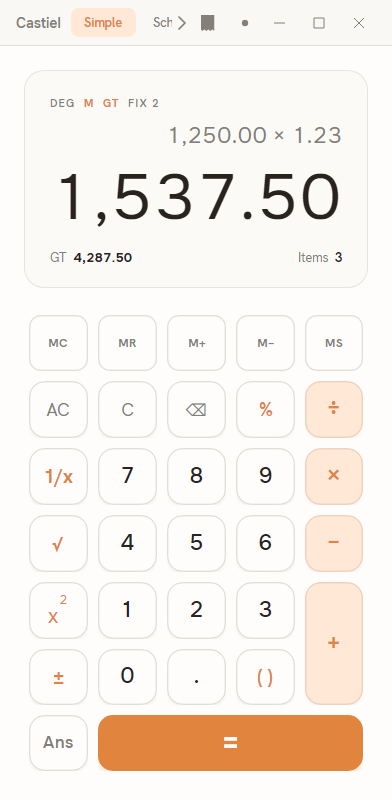
The window has two columns. On the left is the calculator column: a recessed display across the top and the keypad filling the space below it. On the right is the docked paper tape, a running log of everything you have calculated. The tape can be hidden when you want the calculator on its own; with it hidden the window shrinks to just the calculator column, and with it shown the window widens to make room for the paper roll.
Reading the display
The display stacks four things from top to bottom: a strip of annunciators, a dim echo of your last input, the large result, and -- when it applies -- a sub-row of running totals.
The annunciator strip. Reading left to right, the strip shows DEG M GT FIX. These are status lights, not buttons; they tell you the current state at a glance.
| Annunciator | Meaning | When it lights |
|---|---|---|
DEG |
The angle mode. In Simple mode this is fixed at degrees and is shown for information only. | Always shown (dim). |
M |
Memory holds a value. Simple mode has one memory register (see below). | Accent-lit whenever the register is non-zero. |
GT |
Grand total is running. Castiel is keeping a total of your results. | Accent-lit whenever the grand-total accumulator is non-zero. |
FIX n / NORM |
The number format for results. FIX n shows a fixed number of decimal places (n); NORM is natural notation. |
Shown dim; reads NORM unless a fixed format is set. |
The echo row. Below the strip, dimmed and pushed to the right, is a small echo of the calculation you just committed -- for example 1,250.00 × 1.23 sitting quietly above its answer. It is a reminder of what produced the current result.
The result. The large figure is the headline: the value of the current entry, or the answer to the last calculation you pressed = on. It uses tabular digits so columns of numbers line up, and it shrinks to fit when a result is long.
The sub-row. When a grand total is running, a thin row appears beneath the result showing GT with the accumulated total on the left and Items with the count of results on the right. It stays hidden on a fresh display and appears once you have committed at least one calculation.
The keypad
The keypad is a five-column grid with a flat memory strip across the top. Every key sends a command directly -- there is no text field to edit -- so a press either enters a value, applies an operation, or acts immediately on the number showing. Thirty-one keys in all.
The memory strip (MC MR M+ M− MS) controls the single memory register. See How the memory keys work below.
Clear and correct.
| Key | What it does |
|---|---|
AC |
All Clear. Clears the whole working calculation, the last answer, and any error message. Memory and the grand total survive the first AC. |
C |
Clear entry. Clears only the number you are currently typing (and any error), leaving the rest of the pending calculation, memory, and grand total intact. |
⌫ |
Backspace. Removes the last digit or item you entered. |
Arithmetic.
| Key | What it does |
|---|---|
0-9 |
Digit entry. |
. |
Decimal point. |
÷ × − + |
The four arithmetic operators. Castiel evaluates a chain in the usual order, so 2 + 3 × 4 gives 14. |
( ) |
Inserts a parenthesis. The one key inserts an opening or closing bracket as the context calls for, so you can group parts of an expression. |
± |
Flips the sign of the number currently showing. |
= |
Equals. Evaluates the calculation, shows the answer as the headline, and commits the step to the paper tape. |
The utility keys. Four keys act immediately on the number on display, without waiting for =:
| Key | What it does |
|---|---|
% |
Percent. Operator-sensitive, in the desk-calculator style (see the example below). |
1/x |
Reciprocal: replaces the displayed value with one divided by it. |
√ |
Square root of the displayed value. |
x² |
Square: the displayed value multiplied by itself. |
Ans. Inserts the previous answer into the current calculation, so you can carry a result forward into a new one without retyping it.
How the memory keys work
Simple mode keeps a single memory register -- a value you can set aside and reuse. The M annunciator lights whenever that register holds a non-zero value, so you always know whether anything is stored.
MS-- Memory Store. Puts the displayed value into memory, replacing whatever was there.M+-- Memory Plus. Adds the displayed value to what is already in memory.M−-- Memory Minus. Subtracts the displayed value from what is in memory.MR-- Memory Recall. Brings the stored value back onto the display so you can use it in a calculation.MC-- Memory Clear. Empties the register; theMannunciator goes out.
A typical use is to total several sub-results. Work out the first, press M+ to bank it, work out the second, press M+ again, and so on; then press MR to read the accumulated total. M− lets you back a value out of the running total.
The grand total (GT)
Alongside memory, Simple mode keeps a grand total -- an automatic running sum of every answer you commit with =. Each time you press =, the result is added to the grand total and the Items count goes up by one; the GT annunciator lights and the sub-row shows the total so far. This is handy for tallying a column of separate calculations without storing each one by hand.
The grand total is deliberately hard to lose by accident: a single AC clears your current calculation but leaves the grand total standing. To clear the grand total and reset the item count, press AC a second time in a row. (Clearing the memory register with MC does not affect the grand total; the two are independent.)
Worked examples
A percentage. Add 23% tax to a price of 1,250:
- Type
1250. - Press
+. - Type
23, then press%. - Press
=.
The result is 1537.50. The % key is operator-sensitive: because a + was pending, 23% is read as 23% of 1,250 (that is, 287.50) and added on. With − pending it would subtract the percentage; with × or ÷ it treats the percentage as a plain fraction.
A chained calculation using memory. Suppose you want the combined cost of 3 items at 4.50 and 2 items at 7.25:
- Type
3 × 4.5, press=. The display shows13.50, and theGTlight comes on. - Press
MSto store13.50in memory. TheMlight comes on. - Type
2 × 7.25, press=. The display shows14.50. - Press
M+to add it to memory. - Press
MRto recall the total:28.00.
Each = also fed the grand total, so the sub-row's GT reads 28.00 across Items 2 -- the same total, reached automatically.
The docked paper tape
Every time you press =, the calculation is committed to the paper tape in the right-hand column. The tape is styled like a printed till roll, with each line showing the operation and its value, subtotals marked with a small diamond, and a Grand Total at the foot when one is running. Negative values are set apart so a refund or deduction is easy to spot.
The docked tape is read-only -- the keypad is how you enter figures -- but its header carries tools to copy the tape, share it, and expand it into the full editable tape surface, where you can add notes, correct earlier lines, and export your working. This is the same shared tape that runs through every mode, so anything you calculate here is part of one continuous record. For the full behaviour -- editing, correcting, and exporting -- see the paper tape.
If you want the calculator on its own, hide the tape from the title-bar tape tool; the window narrows to just the calculator column, and the setting is remembered for next time.
When to use a different mode
Simple mode is the right choice for quick, everyday arithmetic: sums, percentages, squares and roots, running totals. It has no scientific functions, no exact-fraction results, and no graphing. As soon as you need trigonometry, logarithms, powers with arbitrary exponents, exact answers, or any of the calculus templates, move to the School calculator, which is built for that work while sharing the same paper tape. For a tour of how to switch modes and find your way around, see Getting started.
Related chapters
- Getting started -- switching modes and the layout of the window.
- The School calculator -- the scientific workspace for when four functions are not enough.
- The paper tape -- editing, correcting, and exporting your working.