Chapters
Engineer mode
Engineer mode is Castiel's workspace for advanced and professional work. It is best described as School plus more: everything the School calculator does - Natural Textbook entry, the scientific keypad, exact-form results - with a computer-algebra surface, numerical methods, a full units catalogue, a constants library, and extended matrix and vector tools added on top. Reach for it when a School surface stops short: when you need a symbolic answer rather than a number, a root found by iteration, a quantity converted between units, or a result kept in the complex numbers.
You land on the Calculate surface, the advanced scientific calculator that this chapter documents in depth. The other apps sit one click away on the left rail. The rest of this page introduces the mode, lists those apps, and then walks through the Calculate surface.
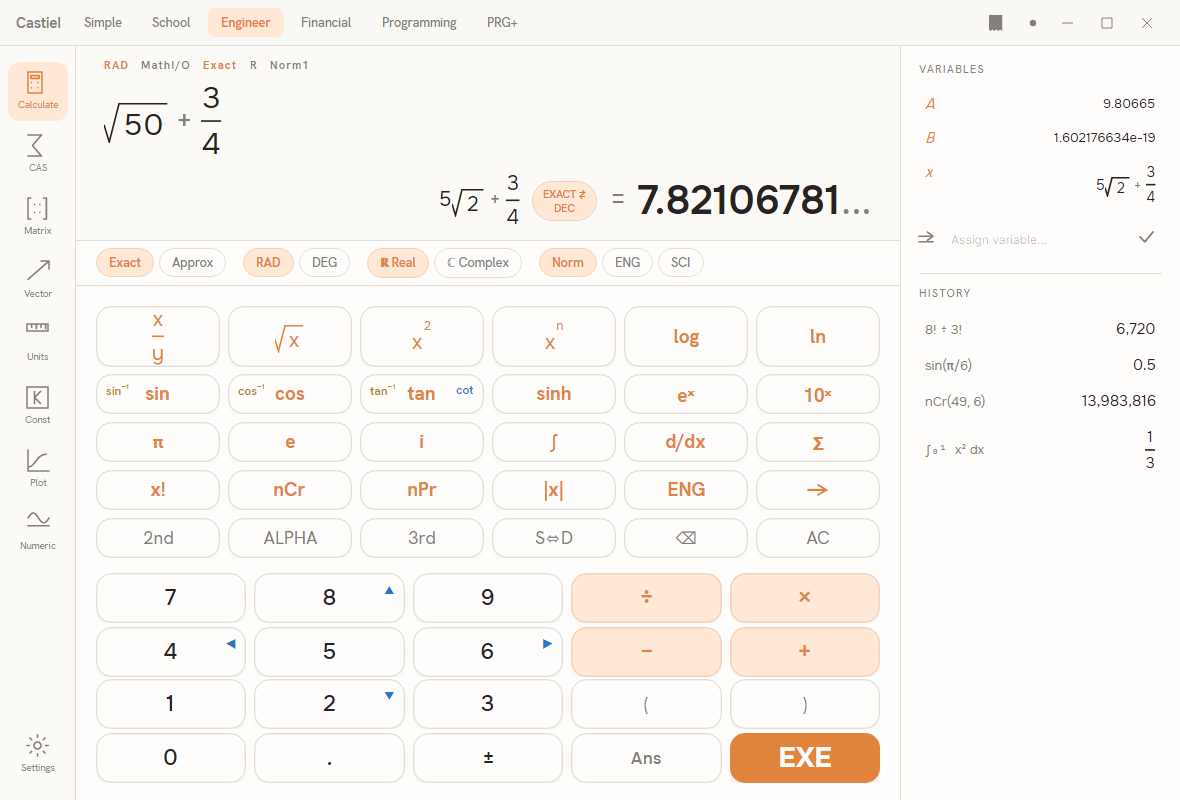
The window has three regions: the apps rail down the left edge, the calculator column in the centre (a Natural Textbook display and mode chips above the keypad), and the Variables and History panel on the right.
How Engineer differs from School
If you already know the School calculator, three things are new here:
- A dual exact-and-decimal result. When an answer has an exact form - a fraction, a surd, a symbolic expression, or a unit-bearing quantity - the display shows both the exact form and its decimal approximation at once, and lets you choose which is the large headline.
- Mode chips under the display. The angle unit, exact-versus-approximate preference, real-versus-complex domain, and number format are toggle chips you click directly, rather than settings buried elsewhere. Change a chip and the next calculation obeys it.
- The extra apps. Calculate is one of eight surfaces. The rail carries a computer-algebra notebook, matrix and vector tools, a units converter, a constants library, a numerical-methods solver, and a grapher.
Everything else - Natural Textbook entry, the scientific keypad, EXE to evaluate - works exactly as it does in School.
The apps rail
The rail down the left edge launches the eight Engineer surfaces; Settings is pinned at the bottom. Each is a chapter of its own:
| App | What it is |
|---|---|
| Calculate | The advanced scientific calculator, documented below. |
| CAS | The computer-algebra notebook: simplify, expand, factor, differentiate, integrate, and solve, with step-by-step working. See CAS. |
| Matrix | An editable matrix with the extended operations (determinant, inverse, decompositions, eigenproblems). See Matrices and vectors. |
| Vector | Two vectors with the dot product, cross product, magnitude, and related operations. See Matrices and vectors. |
| Units | A From/To converter across a large unit catalogue, with a common-units grid. See Units and constants. |
| Const | A searchable library of physical constants. See Units and constants. |
| Plot | The grapher for Cartesian, polar, and parametric functions, with an intersection readout. See Plot. |
| Numeric | The numerical-methods workspace: root-finding and related iterative solvers, with an iteration trace. See Numerical methods. |
The chevron behaviour and the shared Settings window are the same across every mode. The rest of this chapter stays on Calculate.
The Calculate display
The top of the calculator column is a screen with three tiers: a strip of annunciators, the entry line where your expression is built, and the result once you press EXE.
The annunciator strip. A row of small indicators reads out your current settings at a glance - the angle unit (RAD), the entry style (MathI/O, meaning Natural Textbook entry is active), the exact/approximate preference (Exact), the number domain (Real), and the number format (Norm). These are a live readout; you set them with the mode chips directly below.
The entry line. Your expression appears here in textbook notation as you build it: fractions stack, roots sit under the radical, powers ride as superscripts. Entry works exactly as on the School calculator - the same keypad, the same structure templates, the same caret movement.
The result. After EXE, the answer appears at the bottom of the screen. When an exact form exists, the display shows it alongside the decimal: one form is the large headline, the other is a smaller secondary form set off by an ≈ or an =, with an EXACT ⇄ DEC pill between them. Press the pill to swap which form is the headline. By default the decimal is the headline and the exact form sits to its left; toggle to promote the exact form. When there is no exact form to show, the pill is inactive and only the decimal appears. A long decimal ends in a dim ellipsis so a truncated number never reads as though it stopped exactly.
If an evaluation fails - a syntax slip, a value outside a function's domain, or an undefined name - the result line shows the error in place of an answer, so a failed EXE is never silent.
The mode chips
Directly beneath the display is a row of chips, grouped into four sets. A chip is lit when it is the active choice; click another chip in the group to switch. The annunciator strip above updates to match.
| Group | Chips | What it controls |
|---|---|---|
| Exactness | Exact / Approx |
Whether Castiel prefers an exact form (a fraction, surd, or symbolic expression) or goes straight to a decimal approximation. |
| Angle | RAD / DEG |
The angle unit for trigonometric functions: radians or degrees. |
| Domain | ℝ Real / ℂ Complex |
Whether results stay in the real numbers or may be complex. In ℝ Real, an operation with no real result (such as the square root of a negative number) reports an error; in ℂ Complex it returns the complex value. |
| Format | Norm / ENG / SCI |
How decimal results are written: natural notation (Norm), engineering notation with exponents in multiples of three (ENG), or scientific notation (SCI). The number format changes the display only, never the stored value. |
The chips are the fast path that sets Engineer mode apart: the choices that shape your answer sit under the display, one click away, and take effect on the next calculation. If a result surprises you, glance at the chips first - RAD versus DEG and ℝ Real versus ℂ Complex are the usual culprits.
Worked example: a complex result with the ℂ Complex chip
Suppose you want the square root of −4.
- With
ℝ Reallit, press√x, type4, then press±to make it−4, and pressEXE. Because no real number squares to −4, the result line reports a domain error rather than an answer. - Click the
ℂ Complexchip. The domain switches; theRealannunciator gives way to the complex indicator. - Press
EXEagain. The result is now2i- the imaginary answer thatℝ Realmode declined to give.
The same lever works for exactness. Enter √8. With Exact lit, the headline can be shown as the exact surd 2√2, with the decimal 2.828... as the secondary form; press the EXACT ⇄ DEC pill to swap them, or click the Approx chip to make the decimal the default headline for later work. In every case the value is unchanged - only its form and which copy is large.
Variables and History
The panel on the right of the Calculate surface has two lists.
Variables. Store a value under a name and reuse it. Type a name into the Assign variable... box and confirm with the check button, or take a result you have just computed and assign it. Each row shows the name in accent italics on the left and its value on the right - as an exact textbook form where one exists, otherwise as plain text. Click a row to recall that variable into the entry line. Right-click a row for Rename, Change value, and Delete; rename and change-value open a small inline editor on the row, where Enter (or clicking away) commits and Esc cancels.
History. Below the variables, the History list keeps your recent calculations for this session: the expression on the left, its result on the right. Click any entry to recall it into the entry line, ready to edit or re-run. History is a quick scratch record of the session; the durable record is the shared paper tape, described next.
Results and the paper tape
Every EXE commits the calculation to Castiel's shared paper tape - the same running log that threads through every mode. The Calculate surface's History gives you a compact, clickable view of this session's steps, and the calculator column itself is the one you see when you expand the tape to work alongside it, so your Engineer calculations and the tape stay in step. To review, edit, correct, or export your working, open the paper tape, which documents the tape in full.
Related chapters
- The School calculator - the shared keypad, Natural Textbook entry, and structure templates that Calculate reuses.
- CAS - symbolic algebra with step-by-step working.
- Matrices and vectors - the Matrix and Vector surfaces.
- Units and constants - the Units converter and the constants library.
- Numerical methods - root-finding and iterative solvers.
- Plot - Cartesian, polar, and parametric graphing.
- The paper tape - editing, correcting, and exporting your working.