Chapters
Connectors
A connector is a bridge between Castiel and a service that lives outside the app: a live currency-rate feed, an AI provider you supply, a custom web endpoint, or a receipt printer. Everything Castiel needs to calculate is built in and works offline; connectors are the optional extras that reach out to the network or to hardware. They are off until you turn them on, and you manage all of them in one place: Settings -> Connectors & APIs.
You reach this pane from the Settings tile on the apps rail, then Connectors & APIs under the Data group in the settings sidebar. If you never open it, Castiel makes no outside connections on its own.
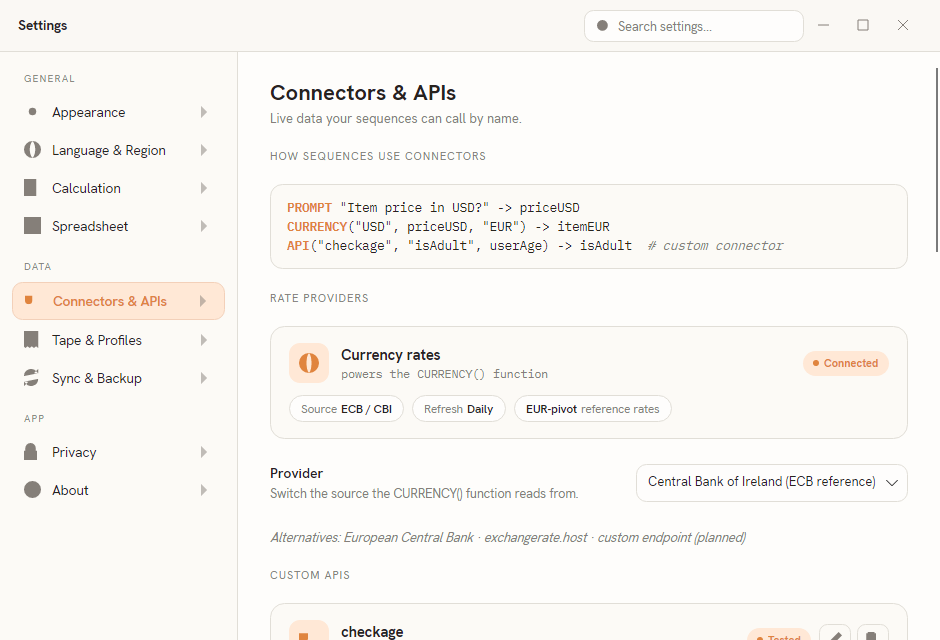
The pane is a single scrolling column of grouped cards. From the top: a short How sequences use connectors snippet showing the on-screen function names; the Rate providers card for currency; the Custom APIs list; and the AI providers list for LLM keys. Two option rows at the bottom control the currency cache and the receipt-printer transport. The rest of this chapter walks through each in turn.
Why connectors are named. Every connector is callable by name from a Catena sequence: CURRENCY(...) reads live rates, API(...) calls a custom endpoint you have added, and PROMPT(...) sends a request to your active AI provider. That is why the pane opens with a usage snippet - the connectors you configure here become functions your sequences can call. See Catena: connectors and the API for the calling syntax.
A note on privacy
A connector sends data to an outside service. When you convert a currency, Castiel fetches rates from the rate provider. When you call a custom API, the arguments you pass go to that endpoint. When an AI feature runs, your prompt goes to the provider whose key you supplied. This is the point of a connector - but it means the data leaves your device. Nothing on this pane phones home to Castiel; the traffic goes to the third party you have chosen. Leave a connector unconfigured and no such request is ever made.
The currency connector
Castiel converts between currencies using live exchange rates. The Rate providers card shows the currency connector's status and where its rates come from.
The source. Rates are published reference rates pivoted through the euro: one fetch returns the full per-euro table, and every other pair is computed as a cross-rate from it. The two supported feeds are the European Central Bank (ECB) and the Central Bank of Ireland (CBI), shown on the card as the Source ECB / CBI chip, with a Refresh Daily chip and an EUR-pivot reference rates chip beside it. A status badge on the right reads Connected when a usable rate table is in hand.
Choosing the provider. The Provider dropdown below the card switches which feed the currency connector reads from - for example Central Bank of Ireland (ECB reference). An italic Alternatives line lists other sources, some of which are planned rather than active; the dropdown itself always offers the providers that currently work.
How converted values appear. A conversion runs like any other calculation. Its result flows into the shared paper tape and the calculator display as an ordinary number, in the currency you asked for. When Castiel has to fall back to a cached rate - because the live feed is unreachable - it marks that step on the tape as using a cached (stale) rate, so you can see the number was not computed from a fresh fetch. Historical conversions (a rate "as of" a past date) use the published rate for that date, or the nearest prior business day if that exact date was never published.
The cache. Today's rates are cached until the next local midnight, so repeated conversions during the day do not re-fetch. The Currency cache row at the bottom of the pane - Serve a stale cached rate when the live feed is offline - controls what happens when you are offline: with it on, Castiel reuses the last cached rate and flags it as stale rather than failing; with it off, an offline conversion with no fresh rate stops and asks you how to proceed.
Custom APIs
Beyond currency, you can add your own HTTP endpoint as a connector - a self-hosted rate service, a school data lookup, any web call that returns a number. Each custom connector you add appears as a card in the Custom APIs list, showing its name, its base URL, and a status badge: Tested once a live test has passed, or Needs key while no key has been stored yet. Pencil and trash tools on each card edit or remove it. A dashed Add custom API button below the list opens the editor.
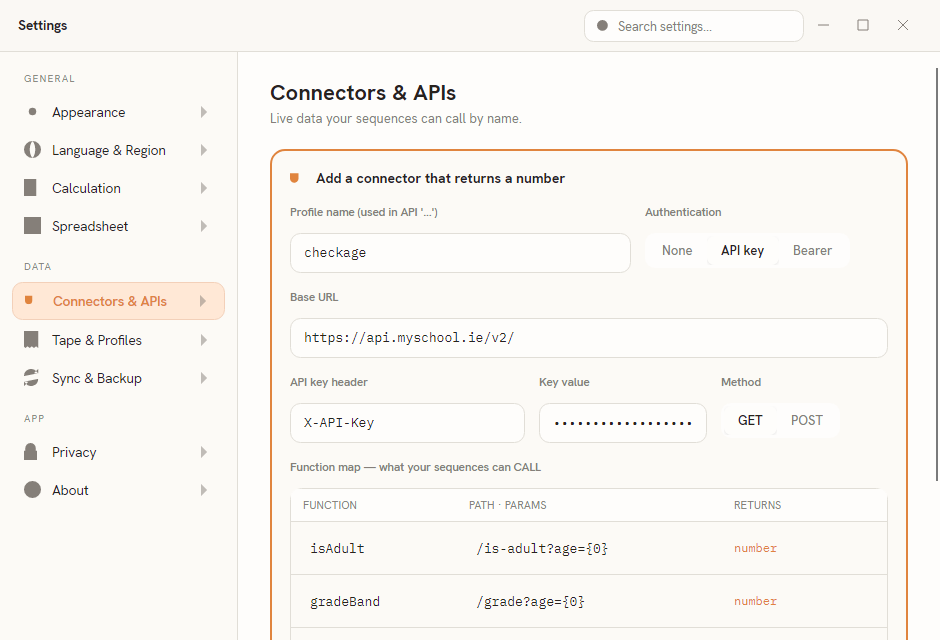
The editor collects everything the connector needs:
- Profile name - the name your sequences will use inside
API("..."). In the screenshot it ischeckage. - Authentication -
None,API key, orBearer. ChoosingAPI keyorBearerreveals the key fields. - Base URL - the root address of the service, for example
https://api.myschool.ie/v2/. - API key header and Key value - the header name (such as
X-API-Key) and the secret itself. The key value is masked as you type; it is saved into your operating system's secure store, never into a plain settings file. - Method -
GETorPOST. - Function map - one row per callable function, each with a name (what your sequence calls), a path with parameter placeholders like
/is-adult?age={0}, and anumberreturn. Add as many as the endpoint offers with + Add function.
A Test strip runs the connector live against the endpoint and shows the parsed numeric result, so you can confirm it works before saving. Save connector commits it; Cancel discards the edit. A saved connector's functions are then callable from any mode.
AI providers (LLM keys)
Castiel ships with no built-in AI. The AI features - the assistant panel in Programming+ - talk to a language-model provider that you supply and pay for. The AI providers group lists one card per supported provider:
- Anthropic
- OpenAI
- Qwen (DashScope international)
- DeepSeek
Each card lets you do the following:
- Paste an API key. Type or paste it into the key field; a Reveal checkbox unmasks it while you check it. The key is stored in your operating system's secure store, and after you save it only a masked form - the first four and last four characters - is ever shown back to you on screen.
- Set key saves the pasted key; Clear removes it from the secure store.
- Validate health-checks the key against the provider and shows a pass/fail badge on the card.
- Manage keys opens that provider's own API-key console in your browser, where you obtain or revoke keys.
- Set active - the radio button on each card. The Programming+ AI panel uses whichever provider you mark active. Only one is active at a time.
For what the assistant does with the active provider, see AI assistant.
Worked example - add an AI key.
- Obtain a key from your provider (use Manage keys on the card to open their console).
- Back in Connectors & APIs, find the provider's card in the AI providers group.
- Paste the key into the field. Tick Reveal if you want to check it, then press Set key.
- Press Validate. A healthy badge confirms the key works.
- Select the card's radio button to make it the active provider.
The Programming+ assistant now uses that provider. The key itself lives only in your secure store; the pane shows it back as a masked stub from then on.
Moving keys between devices. Two buttons, Export keys... and Import keys..., let you carry your stored AI keys to another computer without retyping them. Export writes a .castkeys file (or copies to the clipboard); you choose which providers to include, and may set a passphrase and an expiry. A no-passphrase export is protected against tampering but is not confidential - anyone with the file can read the keys - so set a passphrase for anything you send over a network. Import reads a .castkeys file or the clipboard, prompts for the passphrase if the container has one, shows a masked preview, and writes each key into the receiving device's secure store on confirmation. An expired or tampered container imports nothing.
Receipt printing (ESC/POS)
Castiel can print the running tape to an ESC/POS receipt printer - the kind used at a till - which is most useful with the Financial printing tape. The Receipt printer row at the bottom of the pane, ESC/POS transport for the printing tape, selects how Castiel reaches the printer: serial, network (TCP, default port 9100), or Bluetooth.
What prints:
- Plain text and numbers print as text.
- Structured results - fractions, matrices - are rendered to an image so they print exactly as they appear on screen.
- Where the printer supports two-colour (black/red) ribbon, negative values print in red.
- Paper cut and a cash-drawer kick are issued where the printer reports that it supports them.
For the tape itself and how printing fits its history of steps, see the paper tape.
Related chapters
- Settings - the full settings window and its other panes.
- AI assistant - what the Programming+ assistant does with your active AI provider.
- Catena: connectors and the API - calling
CURRENCY,API, andPROMPTfrom a sequence. - The paper tape - the shared log that currency conversions and printing run through.