Chapters
The Engineer CAS notebook
The CAS notebook is Engineer mode's computer-algebra workspace. CAS stands for computer algebra system: a tool that works with mathematics symbolically, transforming one expression into another rather than boiling everything down to a single number. Where the plain calculator answers "what number is this?", the CAS notebook answers questions like "what does this factor into?", "what is its derivative?", or "what values of x make this zero?" - and it answers them in exact, symbolic form, keeping variables such as x intact.
You reach it from the CAS tile on the Engineer apps rail, the second tile from the top (below Calculate). Use it whenever you need algebra done on the symbols: expanding and factoring polynomials, differentiating and integrating, taking limits, building a Taylor series, or solving an equation for its roots. For evaluating a single expression to a value, use the plain Engineer calculator instead; for root-finding and other numeric approximations, see Numerical methods.
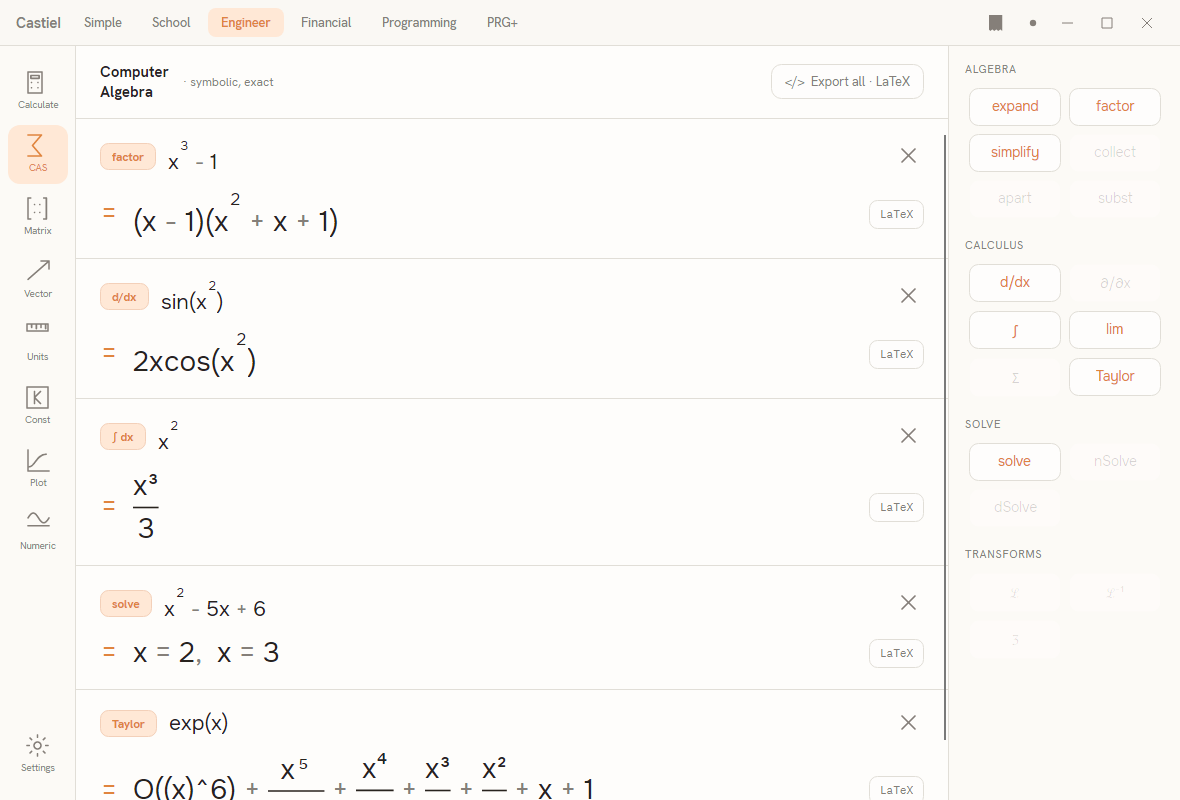
The surface has two columns. On the left is the notebook: a header reading Computer Algebra · symbolic, exact, with an Export all · LaTeX action at its right end, above a scrollable stack of cells. On the right is the operation palette, a narrow column of chip buttons grouped into four categories - ALGEBRA, CALCULUS, SOLVE, and TRANSFORMS.
The notebook-of-cells model
A CAS session is a list of cells, stacked top to bottom and separated by hairline rules. Each cell records one operation and its outcome, and reads in two rows:
- The operation row shows a small tinted operation chip (for example
factor,d/dx,∫ dx,solve, orTaylor) followed by the input expression, rendered in textbook notation - powers ride as superscripts, fractions stack, roots sit under their sign. A small×at the far right removes the cell. - The result row begins with an accent
=and shows the output expression, again in textbook notation, with aLaTeXbutton at its right end.
You build a session by applying operations. Click a palette chip and a new cell appears, running that operation on the expression from the cell you last worked in. Reading the screenshot top to bottom, each cell is one such step:
factorapplied tox³ − 1gives(x − 1)(x² + x + 1).d/dxapplied tosin(x²)gives2x cos(x²).∫ dxapplied tox²givesx³/3.solveapplied tox² − 5x + 6givesx = 2, x = 3.Taylorapplied toexp(x)gives its series1 + x + x²/2 + x³/6 + … + O(x⁶).
The result is shown directly, in its final form. The notebook does not print a step-by-step derivation of how it reached each answer; each cell is the operation, its input, and its result. If an operation cannot produce an answer - a parse error, or a limit that does not exist - the cell shows a short explanatory message in place of the result row rather than failing silently.
The operation palette
The palette on the right lists every operation the notebook can offer, grouped by kind. An operation shown in accent colour is available and ready to apply; an operation shown dimmed is a planned entry that this build does not yet perform. Hovering a dimmed chip shows a tooltip explaining why it is unavailable. Only the available operations are described below.
ALGEBRA - reshaping an expression.
| Chip | What it does |
|---|---|
expand |
Multiplies out brackets and powers into a flat sum of terms - for example (x − 1)(x + 1) becomes x² − 1. |
factor |
The reverse: writes an expression as a product of simpler factors, such as x³ − 1 into (x − 1)(x² + x + 1). |
simplify |
Reduces an expression to a tidier equivalent form, cancelling and combining where it can. |
The chips collect, apart, and subst also appear in this group but are dimmed in this build.
CALCULUS - differentiation, integration, limits, and series.
| Chip | What it does |
|---|---|
d/dx |
Differentiates the expression with respect to x, returning its derivative - sin(x²) becomes 2x cos(x²). |
∫ |
Integrates the expression with respect to x, returning an antiderivative - x² becomes x³/3. |
lim |
Takes the limit of the expression as x approaches a target value. |
Taylor |
Expands the expression as a Taylor series about a point, up to a chosen order, ending in a remainder term such as O(x⁶). |
The chips ∂/∂x (partial derivative) and Σ (symbolic summation) appear here but are dimmed.
SOLVE - finding the values that satisfy an equation.
| Chip | What it does |
|---|---|
solve |
Solves the expression, treated as equal to zero, for x, and lists the roots - x² − 5x + 6 gives x = 2, x = 3. |
The chips nSolve (numeric root-finder) and dSolve (differential-equation solver) appear here but are dimmed. For numeric root-finding, use Numerical methods.
TRANSFORMS. This group lists the integral-transform operations ℒ (Laplace), ℒ⁻¹ (inverse Laplace), and ℨ (Z-transform). All three are dimmed in this build; the group is present so the layout is complete, but none of these operations runs yet.
Exact, symbolic results
Everything the notebook returns is exact and symbolic. A fraction such as x³/3 is kept as a stacked fraction, not turned into a rolling decimal; a factored polynomial keeps its factors; a derivative keeps its trigonometric functions. Variables stay as letters throughout, because the whole point of the surface is to reason about the shape of an expression, not to pin it to one numeric value.
This is the essential difference from the plain Engineer calculator. There, you enter an expression and get a number back (with an exact-versus-decimal toggle on that number). Here, you enter an expression and get another expression back - factored, differentiated, integrated, or solved. The two surfaces are complementary: use CAS to rearrange or transform the algebra, then take a specific result to the calculator when you want to evaluate it at particular numbers.
Copying results as LaTeX
Every result the notebook produces is also available as LaTeX, the standard typesetting notation for mathematics, so you can drop a result straight into a document or a paper.
- Per cell: the
LaTeXbutton on a cell's result row carries that cell's result in LaTeX form. - Whole notebook: the
Export all · LaTeXaction in the header gathers every cell that produced a result into a single LaTeX block, each entry labelled with the operation and input it came from. This is the quickest way to lift an entire worked session out of the app in one step.
The × on a cell removes it from the notebook, so you can prune exploratory steps before exporting.
Worked examples
Example 1 - factor a polynomial. You want to factor x³ − 1.
- Start from a cell holding the expression
x³ − 1(the top cell in the screenshot). - Click
factorin theALGEBRAgroup of the palette. - A new cell appears with the
factorchip besidex³ − 1, and the result row shows= (x − 1)(x² + x + 1). - Press the cell's
LaTeXbutton to copy that factored form for pasting elsewhere.
The factors are exact: (x − 1)(x² + x + 1) multiplied back out returns the original cubic, as you can confirm by applying expand to the result.
Example 2 - differentiate an expression. You want the derivative of sin(x²).
- Start from a cell holding
sin(x²). - Click
d/dxin theCALCULUSgroup. - A new cell shows the
d/dxchip besidesin(x²), with the result= 2x cos(x²)- the chain rule applied for you, in exact symbolic form. - To go further, apply
d/dxagain to that result for the second derivative, or∫to integrate it back.
Chaining operations this way - each cell picking up where the last left off - is how a CAS notebook builds a worked argument step by step, with every intermediate result kept on screen. For the mathematics behind these operations, see Calculus basics.
Related chapters
- The Engineer calculator - the plain Engineer surface for evaluating expressions to values.
- Calculus basics - the derivatives, integrals, limits, and series behind the
CALCULUSpalette. - Numerical methods - numeric root-finding and approximation, the counterpart to symbolic
solve.