Chapters
The sequence Library
The Library is where Castiel keeps your named sequences and the collections you bring in from other people. A sequence you build in Programming mode lives inside the editor until you save it; saving it to the Library gives it a name, a home, and a stable identity, so you can find it again, call it by name anywhere in the app, and bundle it up to share. The Library is also the doorway for sequences that arrive from elsewhere - a folder on a shared drive, a colleague's exported file, or a web address you subscribe to.
You reach it from the Library tile on the apps rail down the left edge of Programming mode (the rail reads Programs, Library, Learn, Debug, Settings). Use the Library whenever you want to keep a sequence for reuse rather than retype it, to organise your collection by category and tag, or to move sequences between machines and people. If you only want to run a one-off sequence you are editing, you do not need the Library at all - it is for the sequences worth keeping.
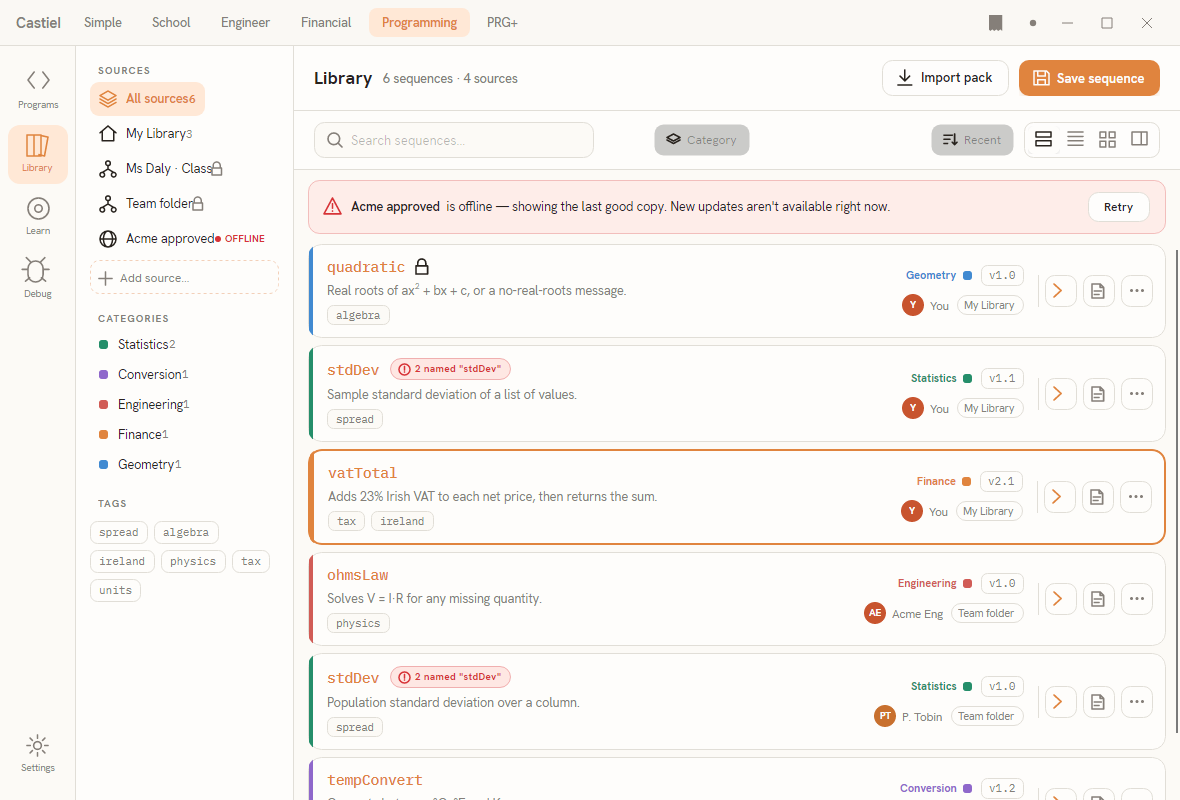
The window has three parts. The filter rail on the left groups your collection by SOURCES (where sequences come from), CATEGORIES, and TAGS, with an Add source… button at the foot of the sources list. The main column fills the rest: a toolbar showing Library with a running count such as 6 sequences · 4 sources and the Import pack and Save sequence buttons; a sub-bar with a search box, a Category control, a sort chip (Recent), and a four-way view switch; and below them the list of sequences. When a web source cannot be reached, a stale banner sits above the list - for example "Acme approved is offline - showing the last good copy" - with a Retry button.
Browsing sequences
Each sequence appears as a row carrying everything you need to recognise it: the name (in a fixed-width type), an optional one-line description, its tags, a coloured category label and spine (Finance, Geometry, Statistics, Conversion, Engineering), a version pill such as v1.0, the author with a small avatar, and a source pill showing which library it lives in. A padlock marks a protected, read-only sequence. Where two sequences from different sources share a name, a conflict badge such as 2 named "stdDev" appears; a sequence written with AI help carries an AI-ASSISTED badge. On the right of each row are quick actions: a chevron that opens the sequence in the editor (or, on a flagged row, expands an inline panel to resolve the conflict or explain the lock), a note action for a private note only you can see, and a ⋯ action that exports the row.
Narrowing the list. Type in the search box to filter by name or description. Click a source in the rail to show only that library, a category to show only that group, or one or more tags to combine filters; active filters appear as chips in the sub-bar, each with a small ✕ to clear it. The view switch on the right offers four layouts - roomy rows, a compact dense table, a cards grid, and a two-pane view with an inspector - so you can trade detail for density as your collection grows.
Saving a sequence to the Library
With a sequence open in the editor, press Save sequence in the Library toolbar (it is also offered on the empty-Library screen). The Save to Library dialog opens, already captured from your current sequence:
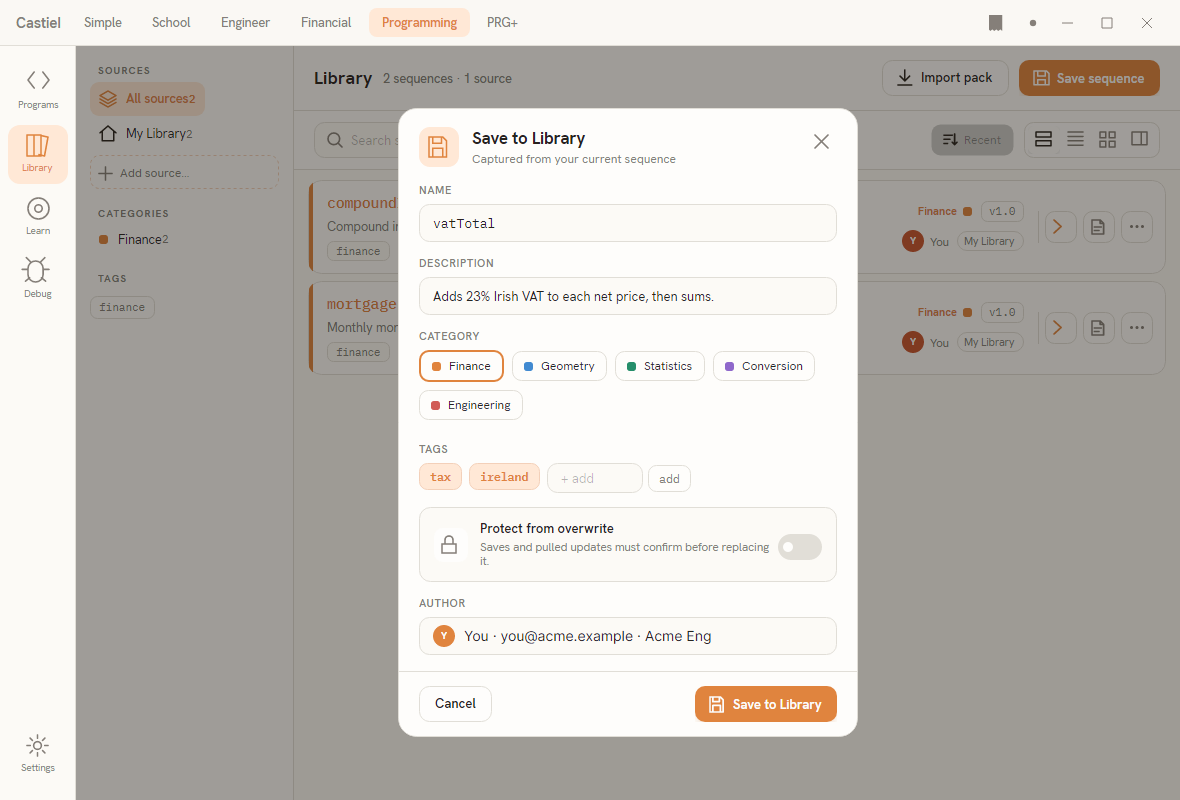
- NAME - the name you will call the sequence by. It must be filled in. If the name is already taken in the target library, a small
● takenmarker appears beside the field. - DESCRIPTION - a one-line summary shown on the browser row.
- CATEGORY - pick one of the five coloured groups (Finance, Geometry, Statistics, Conversion, Engineering); the colour becomes the row's spine and dot.
- TAGS - toggle any suggested tags on, or type a new one into the
+ addbox and press add. - Protect from overwrite - a toggle that, when on, makes future saves and pulled updates confirm before they can replace this sequence.
- AUTHOR - read-only provenance (your name, and email/organisation if set), recorded so a sequence you share carries its origin.
Press Save to Library to store it. If the name collides, the footer changes to offer three choices: Rename…, Replace existing (which overwrites), or Save as a suggested non-colliding name. Trying to overwrite a protected sequence asks you to Force overwrite explicitly; saving over a newer copy warns you and offers Replace anyway. In every case nothing is replaced without a deliberate confirmation.
Worked example - save a sequence, then find it. Suppose you have built a small VAT sequence in the editor:
- Press Save sequence. The dialog opens with the sequence captured.
- Set NAME to
vatTotal, DESCRIPTION to "Adds 23% Irish VAT to each net price, then sums.", choose the Finance category, and add the tagstaxandireland. - Press Save to Library.
- The dialog closes and
vatTotalnow appears in the browser list, with its Finance spine,v1.0version pill, and your author avatar. Click Finance in the CATEGORIES rail, or typevatin the search box, and the row is right there.
Sources: where sequences come from
A source is a place the Library reads sequences from. Open the source manager with Add source… in the rail (or the browser's source list); it lists your sources in order under the heading "Sources · where sequences come from · in order". Castiel supports four kinds: your own default library (writable, always present), a local folder, a network shared folder, and a web share (a URL you subscribe to). Add the first three with Add folder; add a subscription with Add web share.
Each source row shows its name with a WRITABLE or READ-ONLY pill and, for web shares, a TRUSTED or UNTRUSTED pill, followed by its path or address. A web share also shows its refresh cadence ("Refresh: Every session / Every 7 days / Manual") and when it was last checked, turning red when it is offline or has never been fetched. The row's action is Refresh now for a trusted web share, Review & trust for one you have not yet approved, or a ⋯ menu for a local or network folder that lets you set its refresh cadence or remove it. Your own default library cannot be removed.
Importing a pack
A pack is a single file bundling one or more sequences (see the file types below). Press Import pack in the toolbar and choose a file. Importing never runs anything - it only reads the sequences into your library and reports what happened, sequence by sequence:
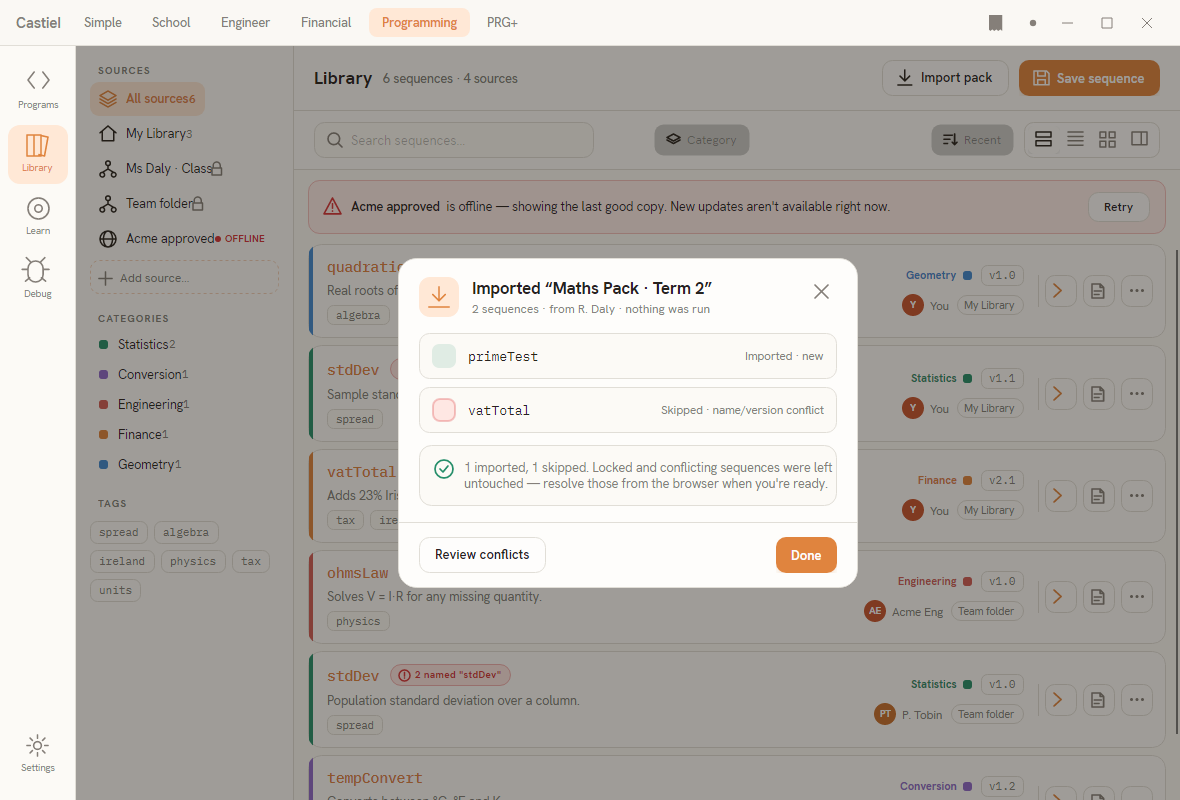
Every sequence in the pack gets a status: a green check for one imported cleanly, a lock for one skipped (for example because a protected sequence of that name already exists), or an alert for one that needs your attention. A summary line at the foot states the totals - "N imported, M skipped" - and the header sub-line confirms that nothing was run. If any rows need resolving, Review conflicts is offered alongside Done.
If a pack is malformed or too large, Castiel refuses it automatically, before anything is read or run, and shows a short plain-language reason together with the reassurance that nothing was imported. There is no error code to decode - just the name of the file, what was wrong, and how to get a valid pack.
Exporting a pack
To share sequences, press the ⋯ action on a row (which pre-selects that sequence) or open the export dialog, then tick the sequences you want. Choose a pack type:
- Plain pack (the default) - "Opening it just lists the sequences inside. Nothing runs." This is the right choice for a library of reusable sequences.
- Executable pack - tagged
RUNS ON OPEN, this is "marked to offer one sequence to run when opened - always behind a confirmation, never automatic." Choose it only when the pack is meant to do something on open.
The footer button reads Export pack · N, where N is the number of sequences selected, and writes the single shareable file.
Trust and running someone else's code
A sequence can compute anything the engine can, so running one you did not write is a real decision - and Castiel never makes it for you. Two consent gates protect you.
Trusting a web source. When you subscribe to a web share, Castiel asks before it fetches anything from that address:
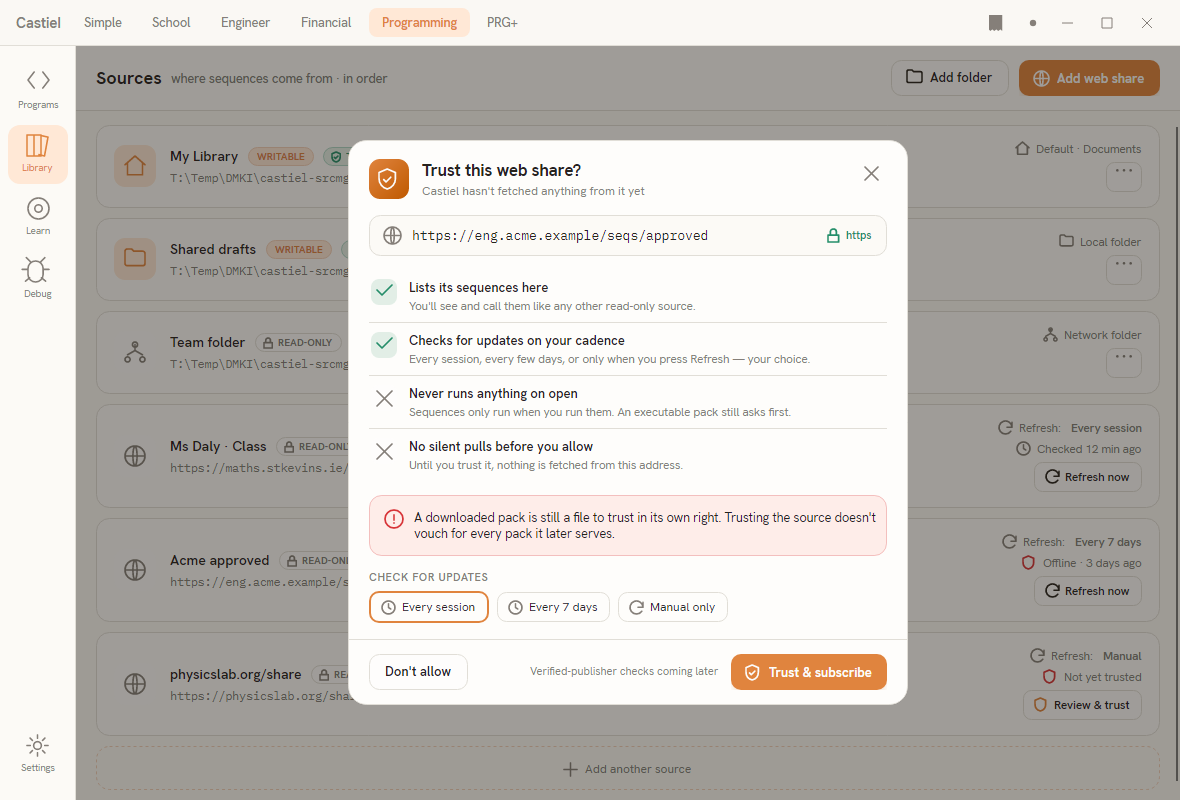
The dialog shows the exact URL (with an https lock chip when the connection is secure) and spells out, in four rows, what trusting does and does not do:
- Lists its sequences here - "You'll see and call them like any other read-only source."
- Checks for updates on your cadence - "Every session, every few days, or only when you press Refresh - your choice."
- Never runs anything on open - "Sequences only run when you run them. An executable pack still asks first."
- No silent pulls before you allow - "Until you trust it, nothing is fetched from this address."
A caution reminds you that trusting the source does not vouch for every pack it later serves - a downloaded pack is still a file to trust on its own. Pick a CHECK FOR UPDATES cadence (Every session, Every 7 days, or Manual only), then Trust & subscribe, or Don't allow to back out. Nothing is fetched until you agree.
Running an executable pack. Opening an executable pack does not run it. Instead Castiel confirms first, telling you the pack file, how many sequences it holds, and exactly which sequence it is set to run. Two rows state the limits plainly: it runs once, now ("Only when you press Run - and only this sequence") and has no background access ("It can't reach files, the network, or other sequences"). The low-friction default button is Just open the list, which imports the pack and runs nothing; Run is a separate, deliberate press. An executable pack is never run automatically.
Calling library sequences by name
Saving a sequence to the Library does more than file it away: it registers the name across the whole app. A saved sequence becomes callable by name in any mode, exactly like a built-in function. In a spreadsheet cell you can write =vatTotal(A1) to run your saved sequence on a value; inside another sequence you can call it the same way. This is what makes the Library worth keeping tidy - every well-named, well-categorised sequence is a function you can reach for anywhere. The full mechanics of arguments, results, and calling one sequence from another are covered in Sequences as functions.
The pack file types
Sequences and collections are stored in four related file types:
| Extension | What it is | On opening |
|---|---|---|
.cat |
A single sequence, with its name, description, author, tags, category, and version. | Opens as one sequence. |
.cats |
A portable library: a bundle of several .cat sequences plus a manifest. |
Lists the sequences inside. Runs nothing. |
.catx |
The same bundle, marked to run. Byte-for-byte identical to the matching .cats; only the extension and open behaviour differ. |
Runs the sequence named as default (or shows the list if none is set) - always behind the run confirmation above. |
.nex |
The manifest inside a .cats/.catx bundle. It links the bundle's sequences and names the default one. |
Part of a bundle, not opened on its own. |
In short, .cats is a library and .catx is an executable version of the same library. If you want a bundle to auto-run its default sequence, Castiel offers to rename .cats to .catx for you in-app, so you do not have to hunt for a hidden file extension. For the wider set of Castiel file types, including saved tape sessions, see File types.
Related chapters
- Programming overview - Programming and Programming+ modes, and where the Library fits.
- Sequences as functions - calling a saved sequence by name, its arguments, and its result.
- File types - every file Castiel reads and writes, and where each opens.