Chapters
The School Base-N calculator
Base-N is Castiel's programmer's calculator: a surface for working with whole numbers in binary, octal, decimal, and hexadecimal, and for the bit-level operations that go with them. You reach it from the Base-N entry on the School apps rail. Reach for it whenever you are thinking in bits rather than quantities -- reading a hexadecimal colour or memory address, masking flags with AND, packing values with shifts, or checking what a number looks like in two's-complement.
Unlike the School calculator, Base-N does not evaluate free-form expressions. It is a fixed-width integer machine: it holds one value at a time, shows that same value in all four bases at once, and applies each operation the moment you press its key. There are no fractions, no decimals, and no letters beyond the hexadecimal digits A-F.
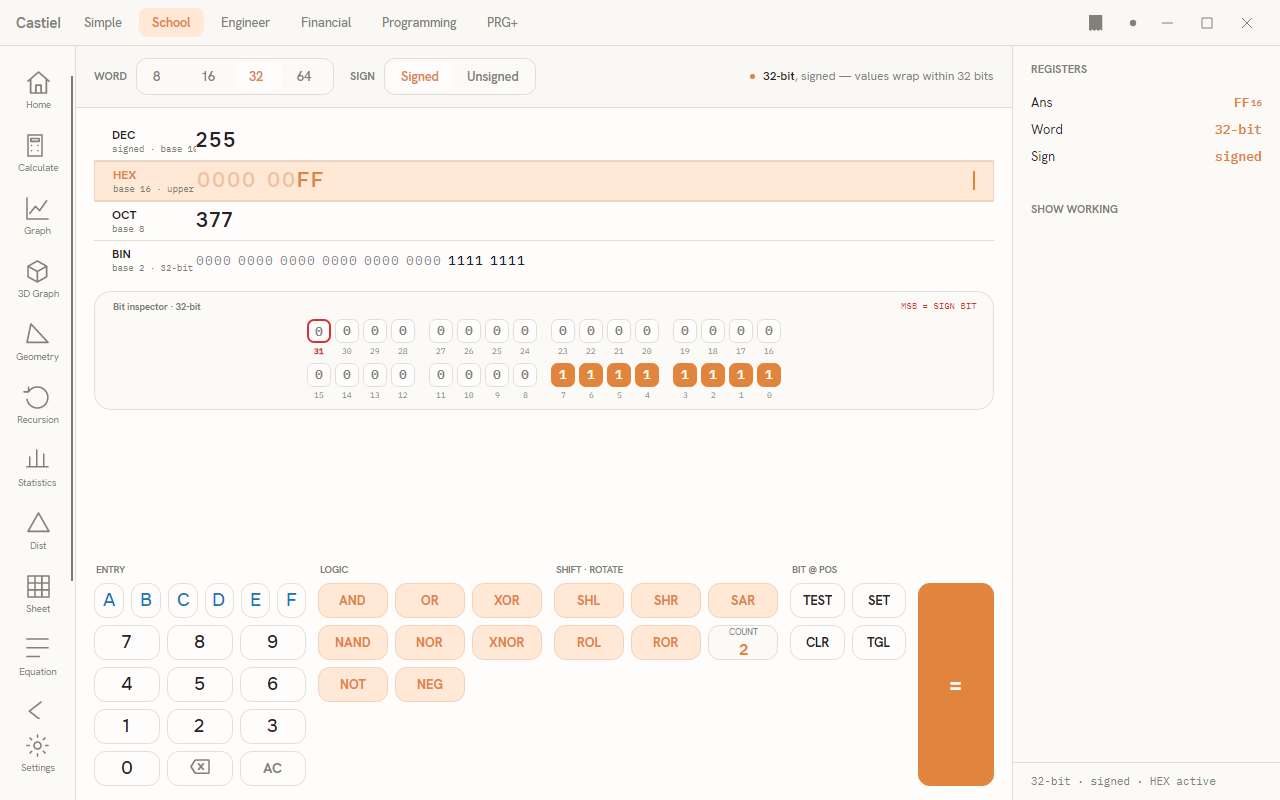
The window has three regions. Across the top is a context strip: the WORD size selector, the SIGN selector, and a plain-language note telling you the machine you are currently working in. The centre is the workspace: an operation headline (when one applies), the four-base readout, and the bit inspector, with the programmer keypad pinned along the bottom. Down the right is a panel of registers (Ans, Word, Sign) above a Show working list that records each completed operation.
The four-base readout
The heart of the surface is the stacked readout showing the current value four ways at once:
| Row | Base | What it shows |
|---|---|---|
DEC |
base 10 | The ordinary decimal value, with thousands grouped by commas. In signed mode a negative value is drawn in red with a true minus sign. |
HEX |
base 16 | Hexadecimal, upper-case, padded to the full word width. Leading zero digits are dimmed so the significant part stands out. |
OCT |
base 8 | Octal. |
BIN |
base 2 | Binary, padded to the full word width and grouped into nibbles of four bits. Leading zeros are dimmed. |
In the hero screenshot above the value is 255: DEC 255, HEX 0000 00FF, OCT 377, and BIN ... 1111 1111. The four rows are always the same number -- only the base of the writing changes.
Switching the active base. One row is the active base, highlighted with an accent tint and a caret at its right edge (the HEX row in the screenshot). The active base decides two things: which base your digit keys type into, and which base the Ans register reports. Click any row to make it active. The keypad re-gates immediately (see below), and the foot line under the right panel updates -- for example 32-bit · signed · HEX active.
Entering a value
Type digits on the ENTRY keypad -- the numeric block 0-9 plus the hexadecimal letters A-F. Digits append to the current value in the active base. AC clears everything (including the Show working list); the backspace key removes the last digit you typed.
Digit gating. Only the digits that are legal in the active base are enabled; the rest are greyed out and cannot be pressed. In BIN only 0 and 1 are live; in OCT, 0-7; in DEC, 0-9; in HEX, 0-9 and A-F. Switching the active base re-gates the keypad on the spot, so you can never enter a digit that does not belong to the base you are typing in.
If you reach for a key another way -- for instance pressing a hardware key that is not legal -- Base-N shows a brief inline note explaining the rule, such as "8 isn't a binary digit -- BIN accepts only 0 and 1". Nothing is entered; the value is untouched.
Word size and truncation
The WORD selector sets the machine word: 8, 16, 32, or 64 bits. The word size is the width of the register every value lives in. It governs how many bits the bit inspector shows, how far HEX and BIN are padded, and -- crucially -- the range of values the surface can hold. Everything wraps within the chosen width, exactly as it would in real hardware. The context note spells this out: "32-bit, signed -- values wrap within 32 bits."
Truncation. When you narrow the word -- say from 32-bit down to 8-bit -- any bits above the new width are dropped. If dropping them actually changes the value, Base-N shows a calm note: "Truncated to 8 bits -- the value did not fit the 8-bit word, so the bits above bit 7 were dropped -- standard machine wrap, not an error." This is deliberate: narrowing a word keeps only the low bits, and the note tells you it happened rather than silently losing data. Widening the word never loses anything.
Signed versus unsigned
The SIGN selector chooses how the same bit pattern is read:
- Unsigned treats every bit as a magnitude. An 8-bit word runs from
0to255. - Signed uses two's complement: the top bit (the most significant bit) is the sign. An 8-bit word then runs from
-128to127.
Switching between the two never changes a single bit -- it only changes how the DEC row and the sign bit are labelled. The HEX, OCT, and BIN rows always show the raw bit pattern regardless.
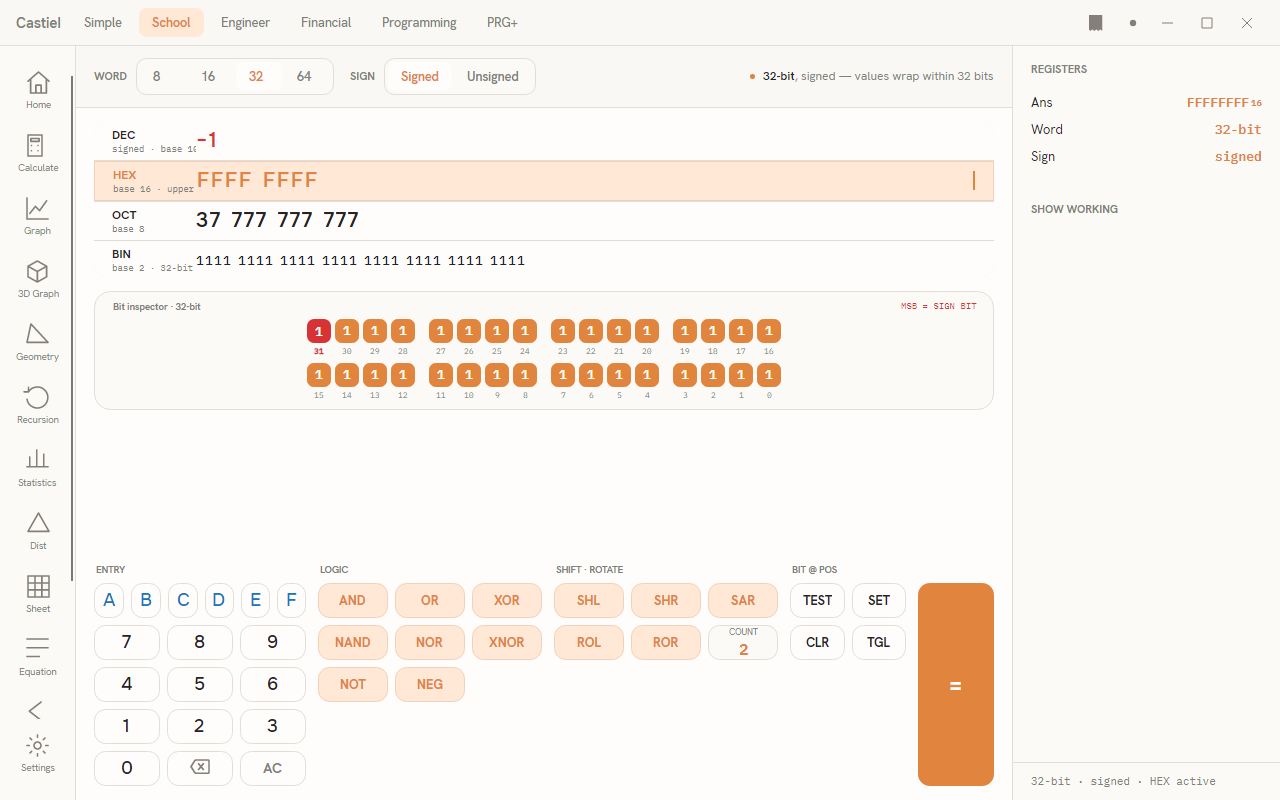
The screenshot shows a 32-bit signed word with every bit set to 1. As an unsigned number that pattern is over four billion; read as two's-complement signed it is simply -1, shown in red on the DEC row with the sign bit (bit 31) drawn red in the inspector. Toggle SIGN to Unsigned and the same FFFF FFFF re-reads as the large positive value -- the bits never moved.
The bit inspector
Below the readout is the bit inspector: the whole word laid out as individual cells, most-significant bit first, grouped into nibbles of four and (for wider words) wrapped into rows of sixteen. Each cell shows its bit value, 1 or 0, with the bit's index printed beneath it.
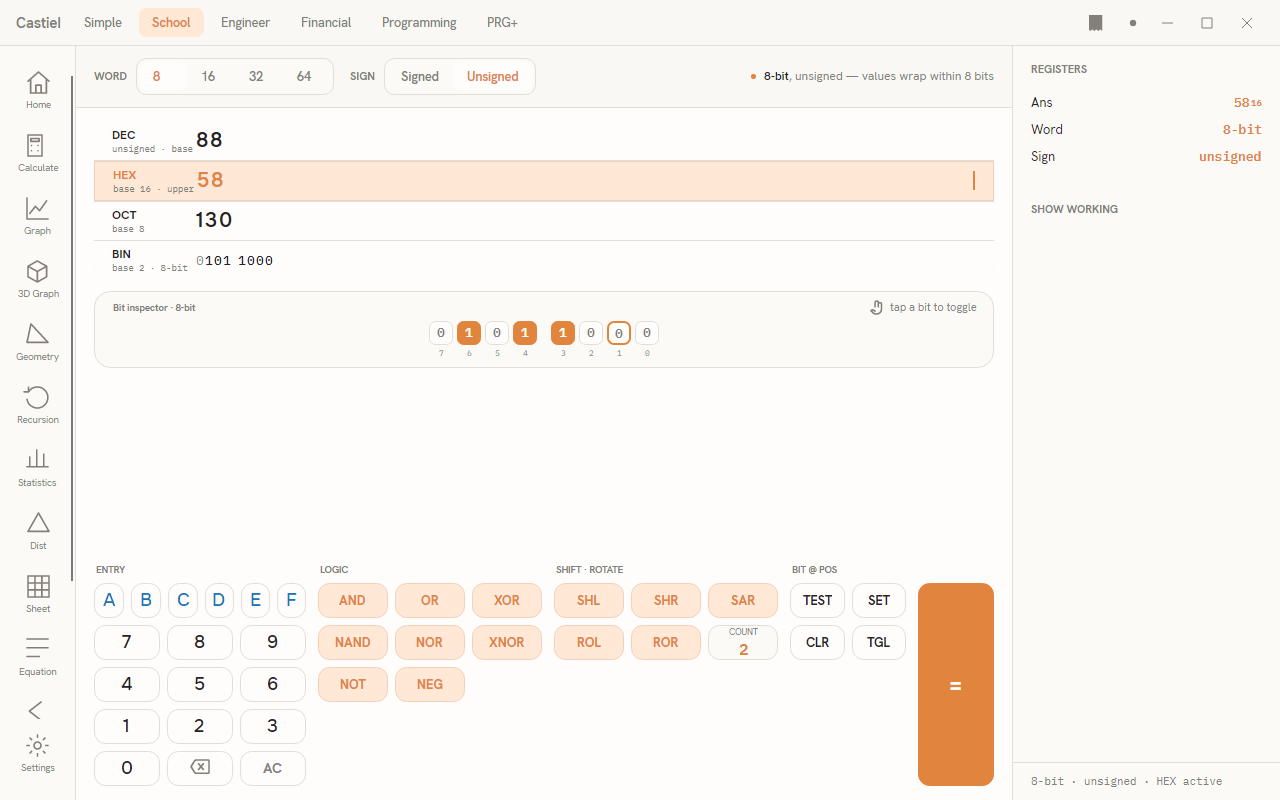
Toggle a bit by tapping it. Click any cell to flip that bit in place; the value updates across all four bases at once. In unsigned mode a small "tap a bit to toggle" hint sits at the top-right of the inspector. In signed mode that hint is replaced by "MSB = sign bit", reminding you that the top bit carries the sign.
The BIT @ POS helpers. The tapped bit becomes the focus position (drawn with a highlight ring), and the four keys in the BIT @ POS cluster act on it:
| Key | Action |
|---|---|
TEST |
Report whether the bit at the focus position is 1 or 0 (written to Show working). |
SET |
Force the focus bit to 1. |
CLR |
Clear the focus bit to 0. |
TGL |
Toggle the focus bit. |
Tap a cell to choose the position, then press the helper you want -- or just tap the cell directly to flip it.
Bitwise operations
The LOGIC cluster carries the bitwise operators. Each combines the current value with the next value you enter; press the operator, type the second operand, then press = to resolve it. NOT and NEG are unary -- they apply immediately to the current value with no second operand.
| Key | Operation |
|---|---|
AND |
Bitwise AND -- a bit is 1 only where both inputs are 1. The masking workhorse. |
OR |
Bitwise OR -- a bit is 1 where either input is 1. |
XOR |
Bitwise exclusive-OR -- a bit is 1 where the inputs differ. |
NAND |
AND then invert. |
NOR |
OR then invert. |
XNOR |
XOR then invert -- a bit is 1 where the inputs are the same. |
NOT |
Bitwise NOT -- the one's complement; every bit flipped. Applies immediately. |
NEG |
Two's-complement negation (the signed "minus"). Applies immediately. |
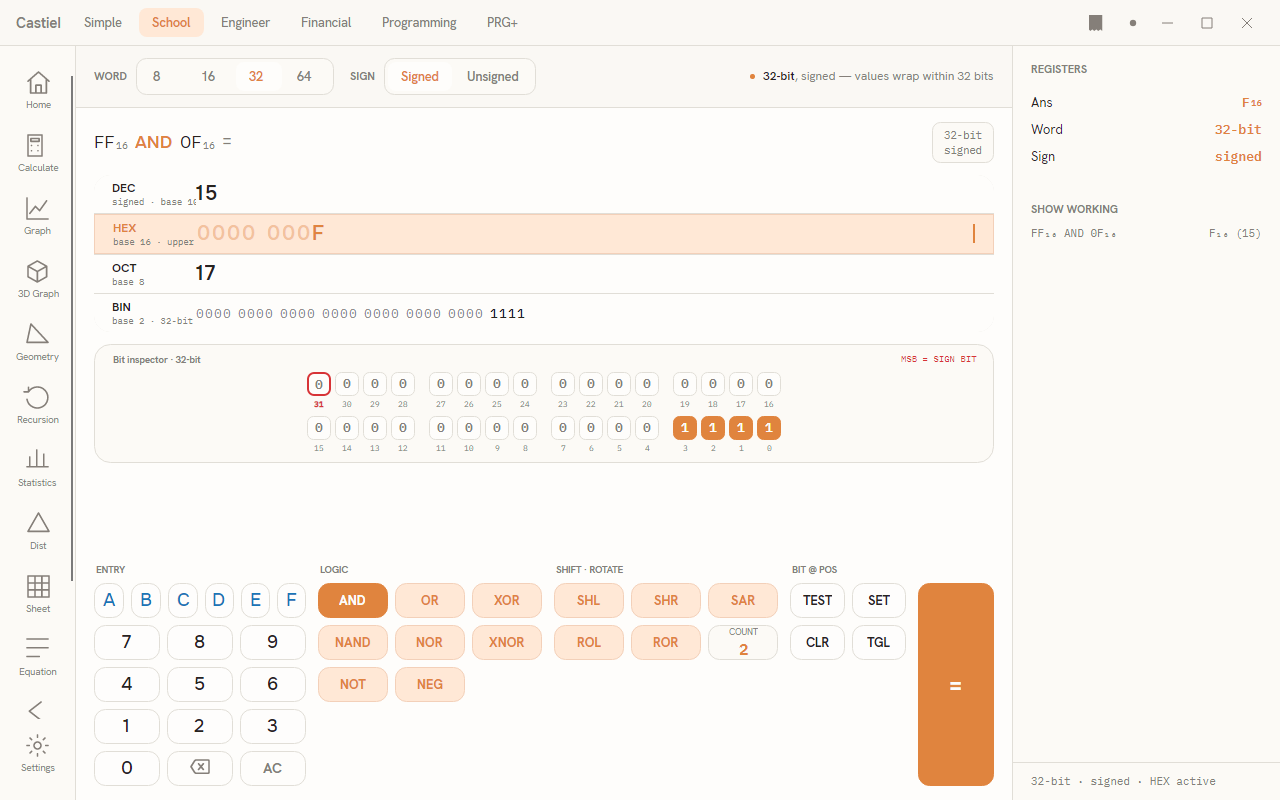
When an operation resolves, the operation headline above the readout shows what was computed -- for example FF₁₆ AND 0F₁₆ = -- with a word/sign tag on the right, and the key that produced the result stays lit. The same line is appended to Show working with both the active-base result and its decimal value in brackets.
Shifts and rotates
The SHIFT · ROTATE cluster moves bits sideways within the word. All of them use the shared COUNT field as the number of positions to move; click the COUNT tile to step it (it cycles within the valid range for the current word). Press a shift key to apply it to the current value using that count.
| Key | Operation |
|---|---|
SHL |
Logical shift left -- bits move up, zeros fill in from the right. |
SHR |
Logical shift right -- bits move down, zeros fill in from the left. |
SAR |
Arithmetic shift right -- like SHR but the sign bit is copied inward, preserving a signed value's sign. |
ROL |
Rotate left -- bits that fall off the top wrap around to the bottom. |
ROR |
Rotate right -- bits that fall off the bottom wrap around to the top. |
Out-of-range count. A shift or rotate count must be smaller than the word size. If the count is equal to or larger than the word width, Base-N declines to apply it and shows an error note: "Shift count out of range -- a count of 40 is ≥ the word size 32. Pick a count from 0-31, or widen the word." Choose a smaller count, or select a wider WORD.
A worked example: masking with AND
Suppose you have the byte FF in hexadecimal and you want to keep only its low nibble -- the bottom four bits -- by masking it with 0F. AND is the tool: a bit survives only where both inputs have a 1, and 0F has 1s only in the low four positions, so it acts as a "keep the bottom nibble" mask.
- Make sure
HEXis the active base (click theHEXrow). The letter keysA-Flight up. - Type
FF. All four rows now read255/FF/377/1111 1111. - Press
ANDin the LOGIC cluster, then type0Fas the second operand. - Press
=.
The result is 0F: the headline reads FF₁₆ AND 0F₁₆ =, the DEC row shows 15, the HEX row shows 0000 000F, and in the bit inspector only bits 3 through 0 remain set. The Show working list records FF₁₆ AND 0F₁₆ ... F₁₆ (15). The mask kept the low nibble and cleared everything above it.
Watching a shift. For a second quick example, type a value, set COUNT to 2, and press SHL. Every lit bit in the inspector slides two places to the left, two fresh zeros arrive on the right, and the HEX/DEC rows update to the shifted value -- multiplying the number by four (two doublings) as long as nothing shifts off the top of the word.
Registers and Show working
The right panel keeps a running summary. Ans holds the current value in the active base with its base subscript (for example FF₁₆); Word and Sign mirror the current machine settings. Below them, Show working logs every completed operation -- one line per bitwise operation, shift, or bit helper -- so you can trace a whole packing or masking sequence after the fact. AC clears the log along with the value. The foot line beneath the panel restates the active machine at a glance: word size, sign mode, and which base is active.
Related chapters
- The School calculator -- the everyday scientific workspace for expressions and exact arithmetic.
- The School apps -- Graph, Statistics, Equation, and the rest of the rail.
- Programming mode -- for authoring sequences, where bit-level work meets the wider programmer toolset.