Chapters
Appearance and themes
Castiel lets you decide how the calculator looks: light or dark, which accent colour picks out operators and results, and how the keys are shaped. These choices live together in one place -- the Appearance pane in Settings -- and they apply to the whole app on this device, in every mode. This chapter walks through the theme, the accent colour, and skins (the button-and-layout scheme behind every keypad), with a short worked example at the end.
You reach the pane from Settings on the apps rail, or from the settings tool in the title bar; Appearance is the first item under the GENERAL group. Because appearance is a page where the look itself is the subject, this chapter shows both light and dark throughout.
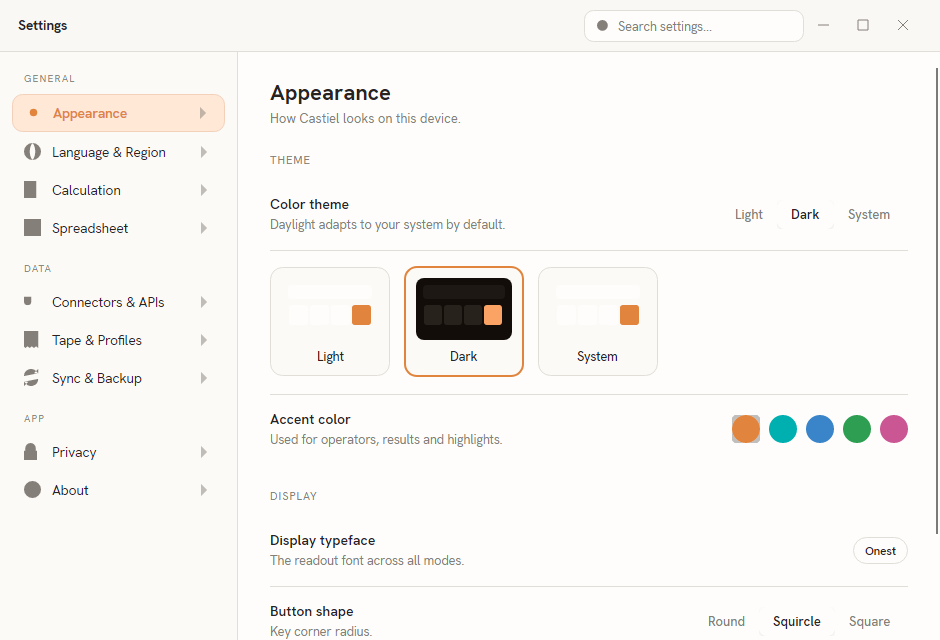
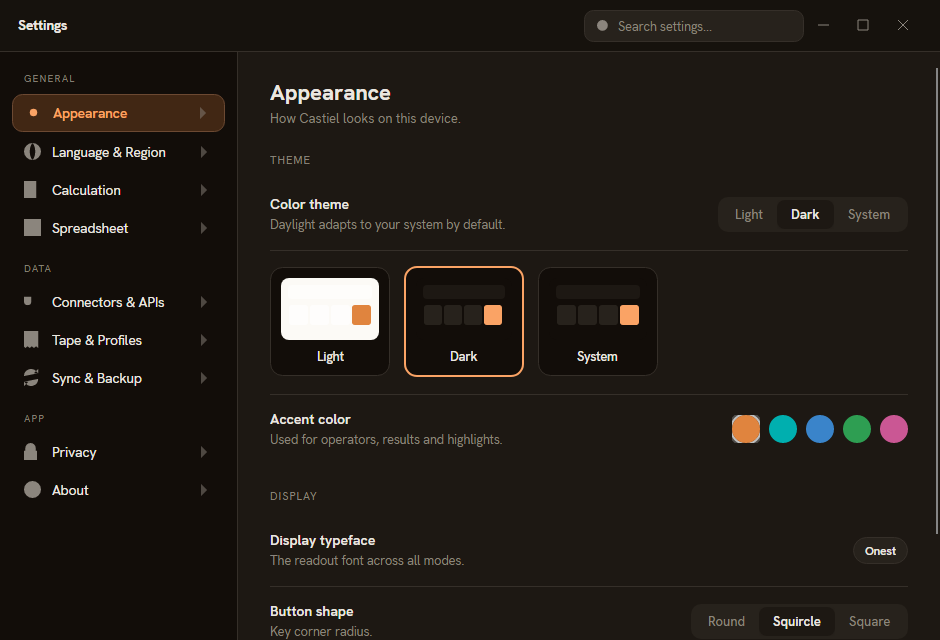
The pane is organised into two groups. THEME holds the two choices that change Castiel's colour scheme -- the light/dark theme and the accent colour. DISPLAY holds three presentation options -- the readout typeface, the key shape, and key-press feedback. Every change previews immediately as you make it, and closing the Settings window saves your selection.
Light, dark, or system
The first row, Color theme, is a segmented control with three choices:
| Choice | What it does |
|---|---|
Light |
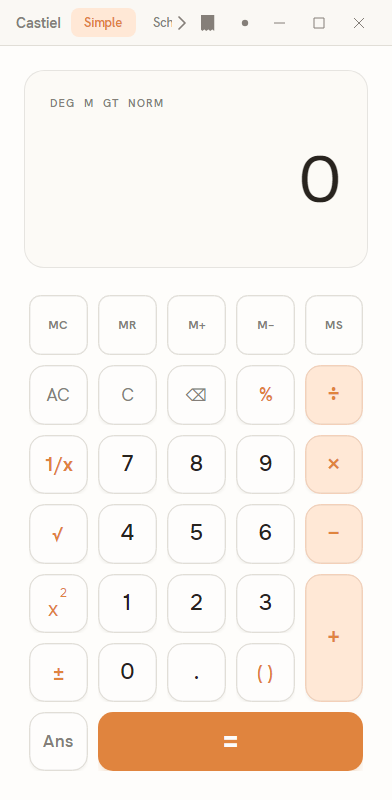
Forces the light colour scheme: a bright screen with dark text and keys. |
Dark |
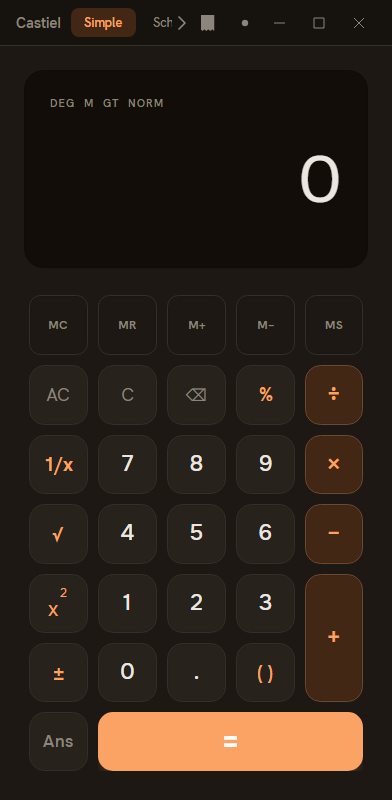
Forces the dark colour scheme: a dark screen with light text, easier on the eyes in low light. |
System |
Follows your operating system's own light/dark setting and switches with it. This is the default -- the pane's own note reads "Daylight adapts to your system by default." |
Under the segmented control sit three preview cards -- miniature mock screens labelled Light, Dark, and System. Each is a live thumbnail of the theme it names, so you can compare the two schemes side by side before you commit. The System card always shows whichever scheme your device is currently using. Selecting a card is the same as choosing that option in the segmented control above it.
Choosing System is the option most people want: Castiel then tracks your device, appearing light by day and dark at night if your operating system is set to do that, with no further action from you. Pick Light or Dark only when you want to override the system and pin one scheme.
Whichever you choose, the change is app-wide and instant. The whole window re-themes at once -- the display, the keypad, the apps rail, and every other mode you switch to afterwards. Here is the main calculator in each scheme:
The accent colour
Below the theme row is Accent color, described on the pane as the colour "Used for operators, results and highlights." It is a strip of five swatches:
| Swatch | |
|---|---|
Amber |
The warm default accent. |
Teal |
A blue-green. |
Blue |
A cool blue. |
Green |
|
Magenta |
A pink-purple. |
The currently selected swatch carries a ring around it. Tap another swatch and the accent changes everywhere at once: the operator keys (÷ × − +), the EXE key, the caret bar in the display, and the highlighted result all take the new colour. The accent is independent of the light/dark theme -- you can run, say, Teal on a dark scheme or Amber on a light one, in any combination. As with the theme, the change previews immediately.
The accent is a highlight colour only. It does not repaint the whole interface; it tints the small set of elements that Castiel uses to draw your eye to operators and answers.
The DISPLAY group
The lower group holds three presentation options. They are not colour choices, but they live on the same pane and shape how the calculator looks:
- Display typeface shows
Onest. This one is informational, not a control -- it names the font used for the readout across every mode, and it is not user-selectable. - Button shape is a segmented control --
Round,Squircle, orSquare-- that sets the corner radius of the keys.Roundgives fully rounded keys,Squaregives sharp corners, andSquircleis the rounded-rectangle middle ground. The keypad restyles as you switch. - Key press feedback is an on/off toggle for a subtle sound and haptic on each keystroke, where the device supports it.
Skins: the button-and-layout scheme
Behind every keypad is a skin -- the scheme that decides which calculator functions appear as on-screen buttons, what each button is labelled and which icon it carries, and how the keys are laid out. A mode is, in part, a choice of skin: the layout you see in the School calculator, the arrangement in Financial mode, and so on, are each defined by a skin.
Castiel ships with a built-in default skin, and that is what every mode uses out of the box. You do not need to choose or install anything to get a complete, well-arranged keypad -- the default is already in place.
Skins are also user-creatable. A skin is a small, shareable definition that maps functions to buttons, labels, icons, and panels, so a skin author can rearrange the keypad, rename keys, or expose a different selection of functions without changing the underlying maths. A skin marketplace, where you could browse and pick skins made by others, is a planned future addition; it is not part of the app today. For now, the built-in default is the skin you will use.
App-wide, saved on close
Everything on the Appearance pane -- theme, accent, button shape, and key-press feedback -- applies to Castiel as a whole on this device, not to one mode or one document. The pane's subtitle says as much: "How Castiel looks on this device." Switch modes after changing the theme and the new mode is already wearing it.
Changes take effect the moment you make them, so the pane doubles as its own preview. Closing the Settings window commits the selection; there is no separate save step.
Worked example: switch to a dark, teal look.
- Open Settings from the apps rail, and select Appearance (the first item under GENERAL).
- In the Color theme row, choose
Dark. The whole window re-themes at once, and theDarkpreview card is now ringed. - In the Accent color row, tap the
Tealswatch. The operator keys, theEXEkey, and the highlighted result all shift from amber to teal immediately. - Close the Settings window. Your dark, teal scheme is saved and will be there next time you open Castiel -- in every mode.
To go back, reopen Appearance and choose System for the theme (to follow your device again) and Amber for the accent.
Related chapters
- Settings -- the full Settings window and its other panes.
- Accessibility -- readability, screen-reader announcements, and assistive options.
- Getting started -- first-run setup and finding your way around.