Chapters
Financial mode
Financial mode is Castiel's business and finance workspace, modelled on the Texas Instruments BA II Plus Professional. If you have used that calculator, everything you expect is here: the five-key time-value-of-money row, the second-function worksheets, the printing-calculator keys, and the sign conventions that go with them. You reach Financial mode from the Financial tab in the mode bar across the top of the window.
Use Financial mode for loans, savings, leases, bonds, cash-flow analysis, depreciation schedules, margins, and everyday till-style arithmetic with tax and subtotals. The defining feature is that the printing tape is the main surface, not a side note: it fills the right half of the window as a two-colour receipt roll, with negatives in red and totals in bold.
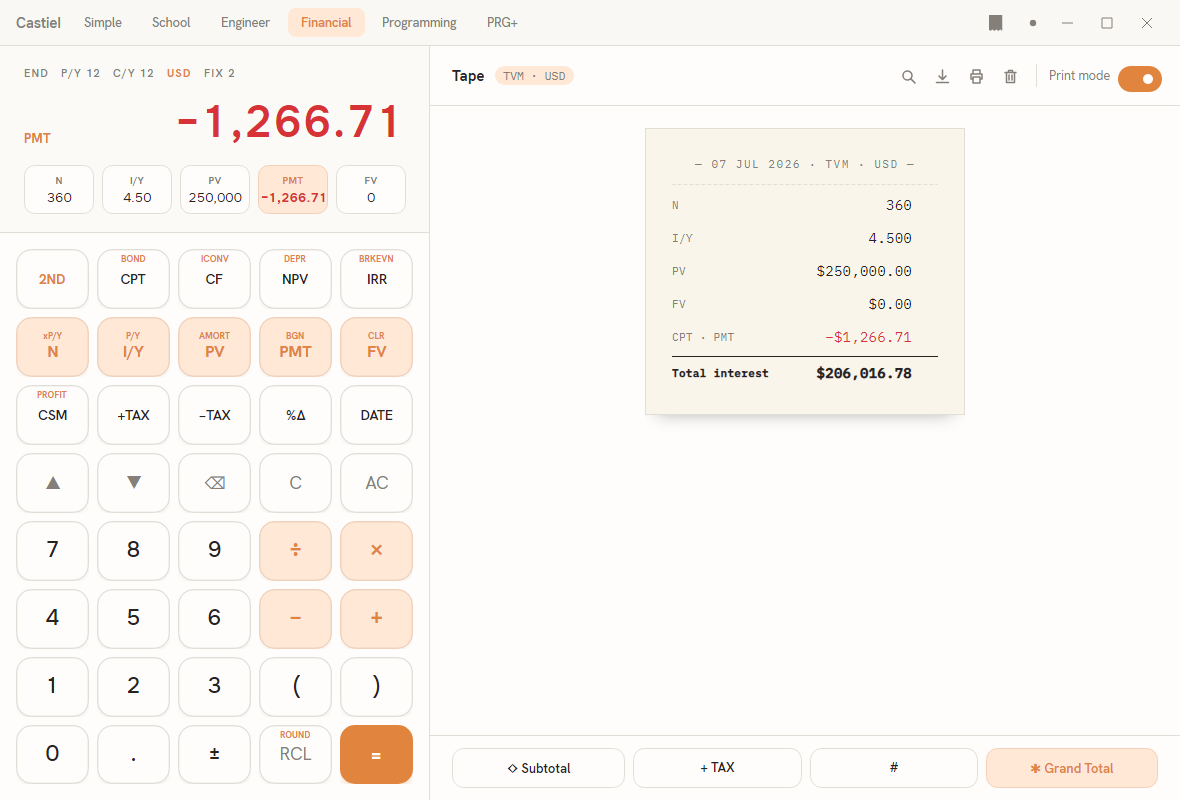
The window has two regions. On the left is the work pane: a status strip and result display on top, then the BA II keypad. On the right is the printing tape with its own toolbar (search, export, print, clear) and a Print mode switch, a scrolling receipt roll in the centre, and a row of printing keys (◇ Subtotal, + TAX, #, ✱ Grand Total) docked along the bottom.
Reading the display
The top of the work pane is a status strip of five annunciators, then the result line, then the live register strip.
The annunciator row. Reading the strip in the screenshot left to right: END P/Y 12 C/Y 12 USD FIX 2.
| Annunciator | Meaning | Other values you may see |
|---|---|---|
END |
Payment timing: payments fall at the end of each period. | BGN (payments at the start of each period) |
P/Y 12 |
Payments per year - how many payment periods make up a year. | any count you set (e.g. P/Y 1 for annual) |
C/Y 12 |
Compounding periods per year - how often interest is compounded. | any count you set (e.g. C/Y 1) |
USD |
The tape currency: rows are tagged and totalled in this currency. | any configured currency code |
FIX 2 |
The number format for results: two fixed decimal places here. | other fixed precisions or natural notation |
The annunciators are a live readout, not buttons. Toggle END/BGN with 2ND then PMT; set payments- and compounding-per-year with 2ND then I/Y, or from the Pmts/yr and Comp/yr chips on any worksheet header.
The result line. The large number to the right is the current value - an entry you are typing, or the answer the calculator just solved. When it is a solved register, a small accent label to the left names which one it is: in the screenshot it reads PMT, and the result −1,266.71 is shown in red because it is a negative cash flow (money leaving your pocket).
The register strip. Below the result sit the five time-value-of-money registers as chips.
The five TVM registers
Every loan, savings plan, or annuity is described by the same five quantities. Financial mode keeps them in five registers, shown as the chip strip under the result and entered from the accent-tinted second row of the keypad:
| Register | Key | What it holds |
|---|---|---|
N |
N |
The number of periods - total payment periods over the life of the calculation. |
I/Y |
I/Y |
The interest rate per year, as a percent (the calculator divides it down to the period rate using C/Y). |
PV |
PV |
The present value - the amount at the start (a loan received, or a deposit made). |
PMT |
PMT |
The payment made each period. |
FV |
FV |
The future value - the amount left at the end. |
Compute the fifth from the other four. This is the core of the whole mode. Enter any four of the five registers, then ask the calculator to solve for the one you left out: press CPT (compute) followed by the key of the register you want. In the screenshot, N, I/Y, PV, and FV were entered and CPT PMT solved for the payment. The solved chip is highlighted in the strip and its label appears beside the result. To enter a register, type the number and press its key (for example, 250000 then PV); to solve one, press CPT then its key.
The sign convention for cash flows
Financial mode follows the standard cash-flow sign rule, and getting it right is the difference between a sensible answer and a puzzling one:
- Money coming to you is positive. A loan you receive, or a maturity value paid out to you, is entered (or returned) as a positive number.
- Money leaving you is negative. A deposit you make, or a payment you send, is negative.
In the mortgage example on screen, the borrower receives PV = 250,000 (positive - the loan lands in their account) and the solved PMT = −1,266.71 is negative and red, because each month they pay that amount out. Within one calculation, PV, PMT, and FV will not usually all share a sign - at least one is an inflow and at least one an outflow. If a solve returns an unexpectedly large or wrong-signed result, check that your inflows and outflows carry opposite signs. Use the ± key to flip the sign of the number you are entering.
The keypad
The keypad is a single five-column grid laid out in the BA II Plus order. From the top:
Function row (2ND, CPT, CF, NPV, IRR).
| Key | What it does |
|---|---|
2ND |
Arms the second-function layer for the next key only; the small label above a key is its second function. |
CPT |
Compute - solves for the empty TVM register (press CPT then N/I/Y/PV/PMT/FV). |
CF |
Opens the Cash Flow worksheet for uneven cash-flow series. |
NPV |
Net present value of the current cash flows. |
IRR |
Internal rate of return of the current cash flows. |
Register row (N, I/Y, PV, PMT, FV) - the five TVM keys above, carrying the accent-soft pill. Their second functions are xP/Y, P/Y, AMORT, BGN, and CLR: press 2ND then the key to reach payments-per-year, the amortization worksheet, the begin/end timing toggle, or to clear the TVM work.
Printing-calculator row (CSM, +TAX, −TAX, %Δ, DATE).
| Key | What it does |
|---|---|
CSM |
Cost / sell / margin - the profit-margin relationships (its second function opens the Profit Margin worksheet). |
+TAX −TAX |
Add or remove the configured tax (VAT/GST) on the shown value. |
%Δ |
Percent change between two values. |
DATE |
Stamps or works with a calendar date on the tape. |
Editing and number rows. Below sit the cursor and edit keys (▲, ▼, ⌫ backspace, C clear entry, AC all clear), then the digits 0–9, the decimal point, the four operators (÷ × − +), a pair of parentheses, the ± sign key, RCL (recall a stored value; its second function is ROUND), and the solid accent = key that evaluates the entry.
The second-function labels printed above several keys - BOND, ICONV, DEPR, BRKEVN, xP/Y, P/Y, AMORT, BGN, CLR, PROFIT, ROUND - are reached with 2ND first. 2ND is a one-shot: it applies to the very next key and then resets.
The printing tape
The right half of the window is a printing tape that behaves like the roll on a desktop adding machine, not like the plain running log used elsewhere in Castiel. Each committed line prints as a receipt row - a dim label on the left, the tabular value on the right - grouped into dated receipt cards, newest at the bottom, with negatives in red and totals ruled off and bold. Hover a row to reveal a small delete affordance that removes that line and re-bases the running total.
The four keys docked along the bottom drive the adding-machine workflow:
◇ Subtotalprints a running subtotal without ending the tally.+ TAXadds the configured tax to the running total as its own line.#prints the item count - how many entries are in the current tally.✱ Grand Totalprints the final total and closes the tally.
Above the roll, a Print mode switch (off by default) sends the tape to a configured thermal receipt printer; the toolbar beside it offers search, export, print, and a clear-tape button that wipes the roll but keeps your TVM registers. Because this tape is currency-tagged and two-colour by design, it differs from the shared paper tape used in the other modes: it is the primary surface here, and it is built for tallies, tax, and totals rather than a step-by-step working. For the shared tape's editing, correcting, and exporting behaviour, see the paper tape.
Worked example: the future value of a deposit
Suppose you deposit 1,000 into an account paying 5% a year, compounded annually, and leave it untouched for 10 years. What is it worth at the end?
- So the rate compounds once a year, set payments- and compounding-per-year to 1: press
2NDthenI/Y, type1, press=(or edit thePmts/yrandComp/yrchips on a worksheet header). The annunciators then readP/Y 1 C/Y 1. - Enter the term: type
10, pressN. - Enter the rate: type
5, pressI/Y. - Enter the deposit as money leaving you: type
1000, press±to make it−1000, then pressPV. - There is no periodic payment, so type
0and pressPMT. - Solve for the future value: press
CPTthenFV.
The result is 1,628.89, shown positive because it is money that comes back to you. The solved FV chip highlights in the register strip, and the tape prints the four inputs followed by the computed FV line. Change any one input and press CPT FV again to see the new result.
For the same solve run the other way - a mortgage payment - enter N = 360, I/Y = 4.5, PV = 250000, FV = 0, then CPT PMT, and the tape shows the monthly payment −1,266.71 exactly as in the screenshot above.
The worksheets
For anything beyond the five TVM registers, Financial mode provides a set of worksheets - structured forms with their own inputs and outputs. Reach them from the keypad: CF, NPV, and IRR open the cash-flow surface, and the 2ND second functions AMORT, BOND, DEPR, BRKEVN, ICONV, and PROFIT open the rest. A tab bar (TVM, Cash Flow, Amortization, Bond, Depreciation) lets you switch between them, with Pmts/yr, Comp/yr, and currency chips shared across the top; a back chevron returns to the calculator.
- Time value of money - the five-register solver in full: loans, savings, annuities, and payment timing.
- Cash flow (NPV/IRR) - uneven cash-flow series, net present value, and internal rate of return.
- Amortization - the loan schedule: principal, interest, and balance period by period.
- Bonds - price, yield, and accrued interest for coupon bonds.
- Depreciation - asset depreciation schedules by the common methods.
- Breakeven and margin - the breakeven point and the cost/sell/margin relationships.
- Interest conversion (Interest conversion) - converting between nominal and effective annual rates.
Related chapters
- Time value of money - the register solver behind the worked example above.
- Cash flow (NPV/IRR) - the
CF,NPV, andIRRkeys in depth. - Interest conversion - nominal versus effective rates.
- The paper tape - the shared running tape used by the other modes.